*if equipped
9
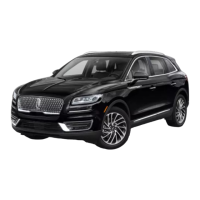
2019 Nautilus
8
SYNC
®
3
Audio
You can select from a variety of entertainment
options including AM/FM radio, USB,
Bluetooth Stereo and Apps.
Presets
To set a new preset, tune to the station and then
press and hold one of the preset buttons. The audio
mutes briefly while the system saves the station and
then returns. There are two preset banks available
for AM, three banks for FM and three banks for
SiriusXM*. To access additional presets, tap the
preset button.
Climate
You can adjust climate control features,
including the temperature, airflow direction,
fan speed and other climate features.
You can also use voice commands to make
climate adjustments.
Apps
AppLink enables voice, steering wheel, and
touchscreen control of certain smartphone
apps. Once an app is running through AppLink,
you can control the main features of the app
through voice commands and steering
wheel controls.
Navigation
Your navigation system is comprised of two
modes. Map mode shows advanced viewing
of 2D city maps, 3D landmarks and 3D city
models (when available). 2D city maps show
detailed outlines of buildings, visible land use
and landscape features. Destination allows you
to set a destination through search, previous
destinations or preset home, work and
favorite destinations.
Select Destination on the screen, then select
Search. You can search for a destination using
a street address, partial address, city, point of
interest, intersection or latitude and longitude.
Once you have chosen your destination, press
Start. The system uses a variety of screens and
prompts to guide you to your destination.
Settings
Under the Settings menu, you can access and
adjust the settings for many of the system
features. To access additional settings, swipe
the screen left or right.
Home Screen
You can reach the home screen by pressing the
button on the main screens. The Home screen
displays features such as audio, phone and settings.
Using Voice Recognition
Using voice commands allows you to keep your
hands on the wheel and focus on what is in front
of you. To activate the SYNC 3 voice commands,
press the voice button
on the steering wheel and
wait for the prompt. You can find the available voice
commands in the SYNC 3 chapter of your Owner’s
Manual or in the Commonly Used Voice Commands
in this guide.
Pairing Your Phone for the First Time
Pair your Bluetooth wireless technology-enabled
phone with SYNC before using the functions in
hands-free mode. Switch on Bluetooth on your
device to begin pairing. See your phone’s manual if
necessary. To add a phone:
1. Select Add a Bluetooth Device.
2. Follow the on-screen instructions.
3. A prompt alerts you to search for the system on
your phone.
4. Select your vehicle on your phone.
5. Confirm that the six-digit number appearing on
your phone matches the six-digit number on
the touchscreen.
6. The touchscreen indicates when the pairing
is successful.
7. Your phone may prompt you to give the system
permission to access information. To check your
phone’s compatibility, see your phone’s manual
or visit the website.
To pair subsequent phones, please see the SYNC 3
chapter in your Owner’s Manual
Using your Connected Phone
You can use voice commands to make, receive,
accept and reject p hone calls. Text messages
can also be sent and received through the system.
Please refer to the SYNC 3 chapter in your
Owner’s Manual for more information about using
your connected phone with the system, including
voice commands and screen selections.
Smartphone Connectivity
SYNC 3 allows you to use Apple CarPlay and
Android Auto to access your phone. When you use
Apple CarPlay or Android Auto, you can:
Use your phone’s voice assistant.
Send and receive messages.
Listen to music.
Make calls.
Apple CarPlay and Android Auto disable some
SYNC 3 features. Most Apple CarPlay and
Android Auto features use mobile data.


 To Next Page
 Loading...