Display
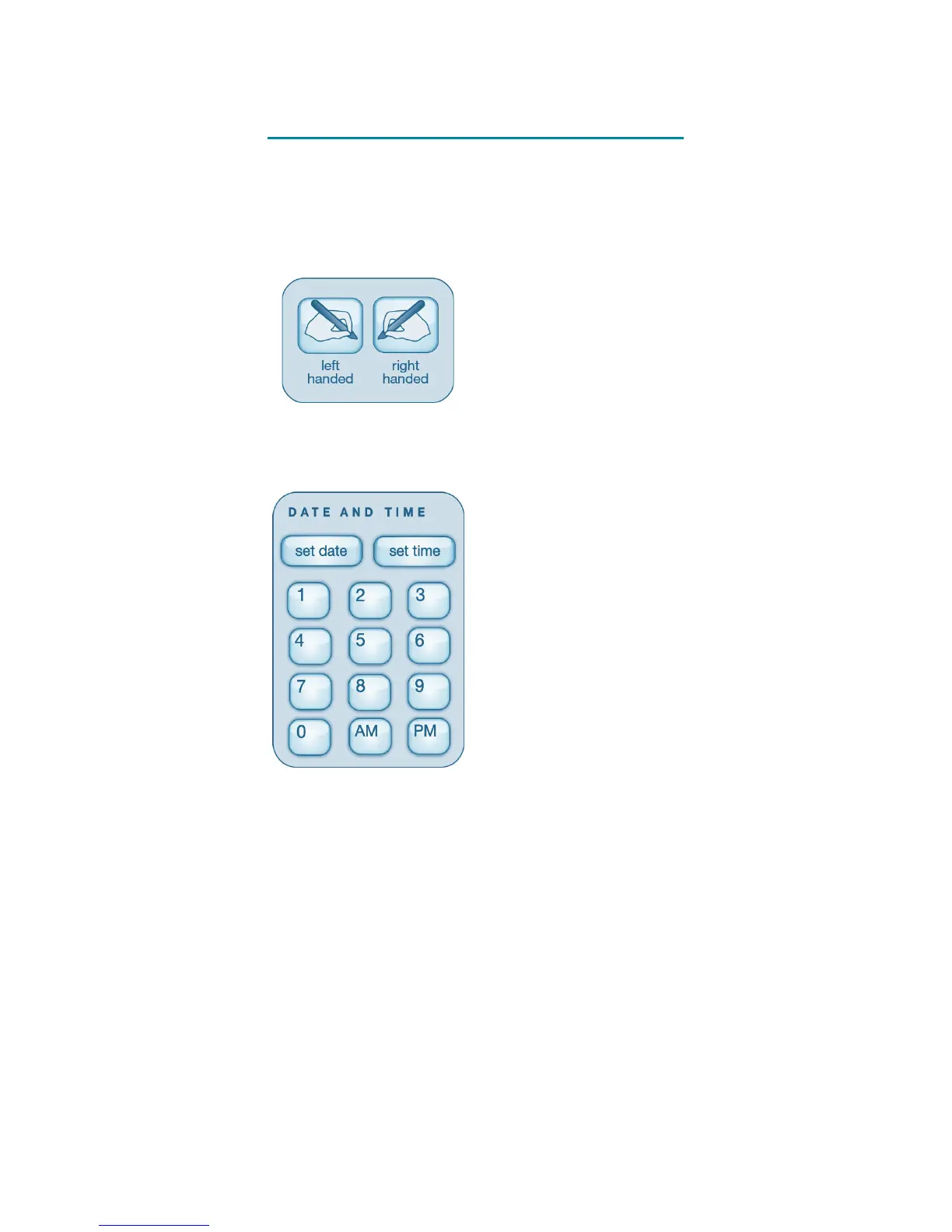
Orientation
Set your display
orientation by tapping
on the relevant button
in the front of your
starter notebook.
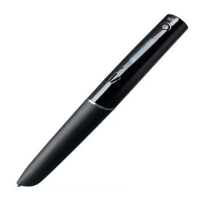
Time and Date
Tap set date with
your smartpen, then
tap numbers to set
the date. Example:
tapping 111515
sets the date to
November 15, 2015.
Tap set time, then
enter the time.
Example: tapping
0845AM sets the
time to 8:45 AM.
It’s important to set the time and date on your
Echo smartpen because your recorded notes are
time-stamped with the date and time they were
created.
Locales
Did you know that your smartpen supports other
languages and regions? Navigate to the Settings
menu to select a different locale.
Setting up your
Echo
®
smartpen


 To Next Page