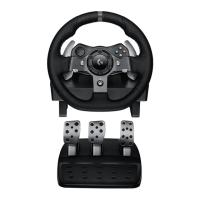
G920 Driving Force Racing Wheel FAQs 25
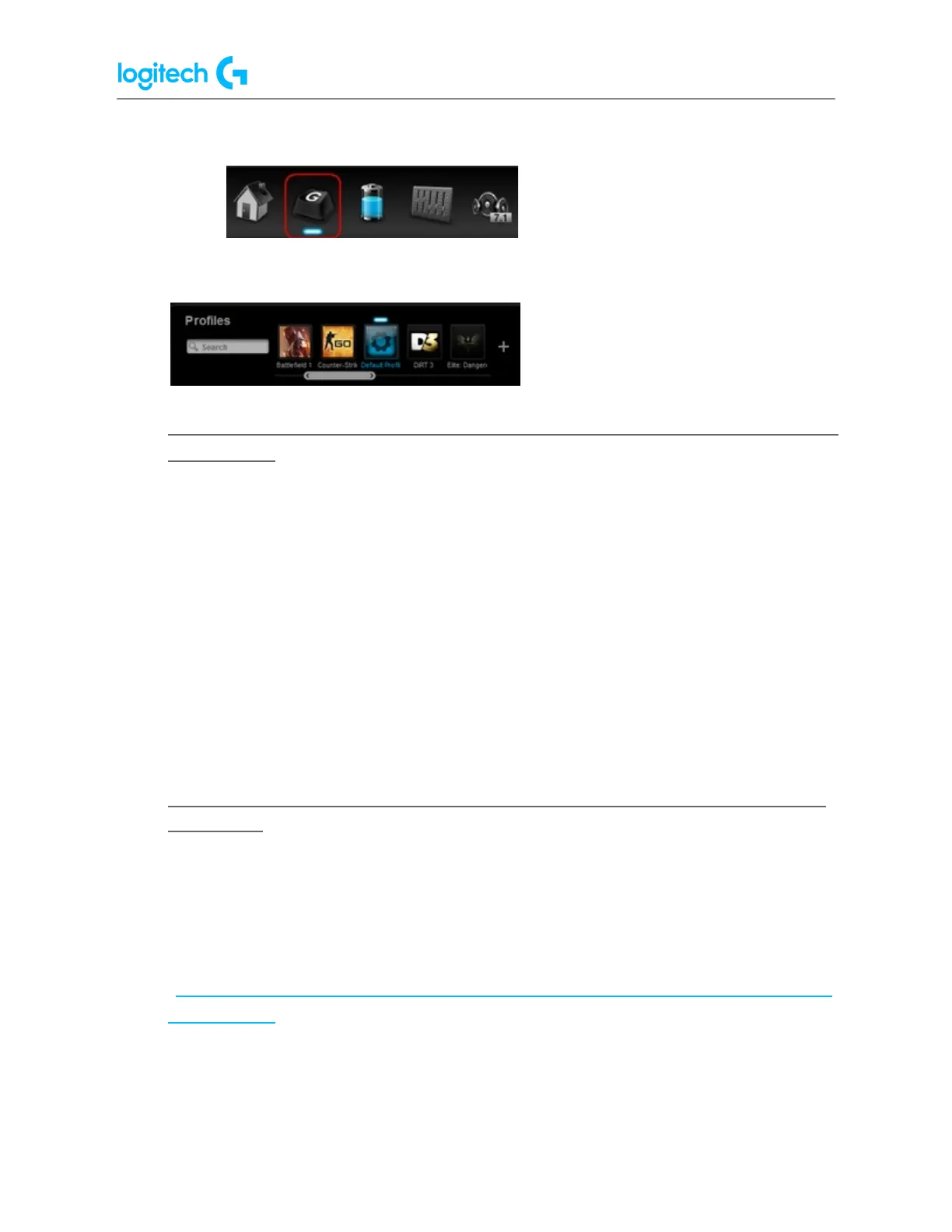
○ Headset — click Customize G-Keys.
4. The profiles you've created will show in alphabetical order in the Profiles area at the
top of the window.
● Digital signature error when Logitech Gaming Software is installed on Windows
7 computers
You may see a digital signature error when you install Logitech Gaming Software (LGS) on
some Windows 7 computers. All recent versions of LGS require the following Microsoft
Windows security update to be installed prior to installing LGS:
● Security Update for Windows 7 Systems (KB3033929)
The security update adds support for SHA-2 driver signing and verification functionality. There
are two versions — one for Windows 7 32-bit (x86) and one for Windows 7 64-bit (x64). Make
sure you've downloaded and installed the correct version for your computer before you install
LGS.
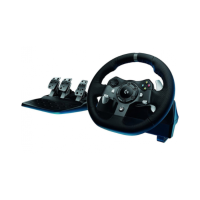
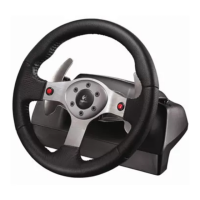
● Blue screen after G920 racing wheel is attached to USB port or G25/G27 is not
recognized
If your computer gives you a blue screen when you connect your G920 wheel or if your
PC/games do not recognize your G25/27 wheel, follow the steps below to resolve the issue:
1. Disconnect the Gaming wheel from your computer.
2. Download and save WheelDriverCleaner.exe to your desktop.
(https://cx-assets.logi.com/Software/Gaming/Wheel%20Driver%20Cleaner/WheelDriv
erCleaner.exe)
3. Run the cleaner tool by double-clicking the file from your desktop.
4. Close the cleaner tool dialog box.
5. Reconnect your Gaming wheel to your computer.





 To Next Page