To Next PageTo Next Page
 Need help?
Do you have a question about the Logitech M-RR67A and is the answer not in the manual?
Remove battery compartment cover, insert battery, and replace cover.
Turn off PC, connect receiver to PS/2 port, then turn on system.
Remove PS/2 adapter, connect receiver to USB port.
Insert software CD and follow on-screen instructions for PC installation.
Insert software CD, find Installer, and follow on-screen instructions for Mac.
Locate the User's Guide on the software CD or hard drive.
Check receiver connection, PS/2 configuration, communication, battery, and cable.
Remove battery compartment cover, insert battery, and replace cover.
Turn off PC, connect receiver to PS/2 port, then turn on system.
Remove PS/2 adapter, connect receiver to USB port.
Insert software CD and follow on-screen instructions for PC installation.
Insert software CD, find Installer, and follow on-screen instructions for Mac.
Locate the User's Guide on the software CD or hard drive.
Check receiver connection, PS/2 configuration, communication, battery, and cable.
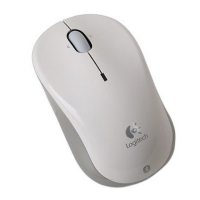
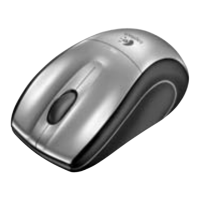
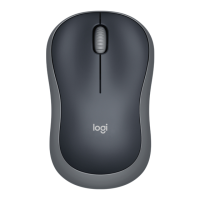
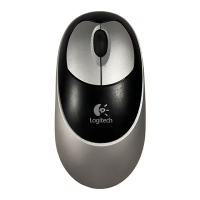
This document describes the Logitech Cordless Optical Mouse, a wireless input device designed for use with personal computers. The mouse offers cordless freedom and optical tracking for precise cursor control.
The Logitech Cordless Optical Mouse is a peripheral device that allows users to interact with their computer's graphical user interface. It translates hand movements into cursor movements on the screen and provides buttons for clicking and other functions. Being cordless, it communicates with the computer via a receiver, eliminating the need for a physical cable connection between the mouse and the computer. The optical tracking technology uses a sensor to detect movement across surfaces, offering more precision and less maintenance compared to traditional ball-based mice.
Cordless Operation: The primary feature is its cordless design, which provides greater flexibility and reduces cable clutter on the desk. Communication between the mouse and its receiver is established by pressing a "connect" button on both devices, ensuring a secure wireless link.
Optical Tracking: The mouse utilizes optical technology for tracking movement. This means it uses a light source and a sensor to detect motion, offering smooth and accurate cursor control on a variety of surfaces. Unlike mechanical mice, optical mice do not have moving parts that can accumulate dirt, leading to more consistent performance and less need for cleaning.
Battery Power: The mouse is powered by a battery, which needs to be inserted into a dedicated compartment. The battery life can be influenced by the surface on which the mouse is used; lighter, matte surfaces are recommended for extending battery life, while darker surfaces may shorten it.
Receiver Connectivity: The mouse receiver can be connected to a computer via either a PS/2 port or a USB port. For PS/2 connections, the computer should be turned off before connecting the receiver cable, then turned back on. For USB connections, a PS/2 adapter can be removed, and the receiver cable connected directly to the USB port. For Windows 98 or higher, or Macintosh OS 8.6 or higher, a USB connection may prompt for the software CD to be inserted for driver installation.
Software Installation: To fully utilize the mouse's features, specific software needs to be installed on the computer. For PCs, the Logitech software CD should be inserted into the CD-ROM drive, and the on-screen instructions followed. If Autorun is not enabled, users can manually run the setup file (D:\Setup.exe, where D: is the CD-ROM drive designation). For Macintosh systems, users should find the Installer icon in the appropriate language folder on the Logitech software CD and double-click it to begin installation.
Compatibility: The mouse is designed for use with both PC (Windows) and Macintosh operating systems, ensuring broad compatibility.
Ergonomics and Comfort: While not explicitly detailed in the provided text, the mention of "Comfort Guidelines" suggests that the product is designed with user comfort in mind, and users are encouraged to review these guidelines for optimal use.
Troubleshooting: The manual provides troubleshooting steps for common issues, such as the mouse not working or not being detected after installation. These steps include:
Optical Sensor: The optical tracking system inherently requires less maintenance than traditional ball mice, as there are no moving parts to clean from dust and debris. This contributes to consistent performance over time.
Battery Replacement: The mouse requires battery replacement. The process involves removing the battery compartment cover, inserting a new battery according to the diagram inside the compartment, and then replacing the cover.
Software Updates: While not explicitly stated as a maintenance feature, the reliance on software suggests that periodic software updates might be available from Logitech to improve performance or add new functionalities.
Durability and Safety: The product is designed to comply with international standards for safety, specifically IEC 825-1:1993, and is rated as a Class 1 LED Product. It is designed for operation within a temperature range of 32°F (0°C) to 104°F (40°C). The mouse contains no user-serviceable parts, indicating that any internal issues would likely require professional repair or replacement rather than user intervention. The user-observable light emitted is 15 microwatts in normal operation. Users are cautioned against using controls or adjustments or performing procedures other than those specified in the manual, as this may result in hazardous radiation exposure.
Information Access: A comprehensive User's Guide, containing valuable information such as customer support numbers, is included on the Logitech software CD and copied to the hard drive during installation. This guide can be accessed via the Start Menu on PCs (Start > Programs > Logitech > MouseWare > User's Guide) or by locating the MouseWare folder on the desktop and double-clicking the User's Guide icon on Macintosh systems. This ensures users have readily available resources for support and further information.

 General