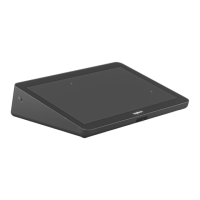
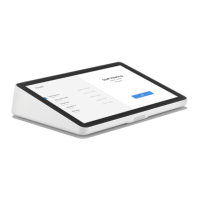
The Logitech TP100 Wireless Touch Controller is a dedicated touch-enabled device designed to streamline meeting room interactions and management. It serves as a central control point for meeting room systems, offering an intuitive interface for users.
Function Description:
The TP100 primarily functions as a wireless touch controller for meeting room systems. It allows users to manage various aspects of a meeting, such as initiating calls, controlling presentations, and adjusting room settings, all through its 10.1-inch touch screen. The device is designed to integrate seamlessly with existing meeting room infrastructure, providing a user-friendly experience. Its wireless capability offers flexibility in placement within the meeting space, reducing cable clutter and allowing for optimal positioning for user access. The controller is intended to simplify the user experience in complex meeting environments, making it easier to start and manage meetings efficiently.
Important Technical Specifications:
- Display: The device features a 10.1-inch touch screen, providing ample space for clear visual feedback and easy interaction.
- Connectivity: It supports Power over Ethernet (PoE) for both power and network connectivity, simplifying installation by requiring only a single cable. Alternatively, it can connect to a network via Ethernet or WiFi, offering flexibility in deployment. A PoE injector may be required if the network does not natively support PoE.
- Mounting: The TP100 includes a VESA MIS-D 100 x 100mm mounting interface, allowing for versatile installation options, such as wall mounting or integration into custom fixtures.
- Audio: An integrated speaker is present, which can be used for audio feedback or specific meeting functions.
- Sensors: A motion sensor is included, likely for features such as automatic screen activation or power saving, enhancing the device's energy efficiency and user convenience.
- Physical Buttons: The device incorporates a device reset button and a factory restore pinhole, providing options for troubleshooting and system maintenance.
- Power: The reliance on PoE or a network connection (Ethernet/WiFi) implies a low-power design suitable for continuous operation in a meeting room setting.
- Physical Design: The device features a bottom cover with a thumbscrew, suggesting easy access for maintenance or installation adjustments.
Usage Features:
- Intuitive Interface: The 10.1-inch touch screen is the primary interface, designed for ease of use with on-screen prompts guiding users through setup and daily operations. This ensures that even first-time users can quickly adapt to controlling meeting functions.
- Meeting Room System Integration: The TP100 requires meeting room system credentials or an activation code to function, indicating its role as an integrated component of a larger meeting ecosystem. This integration allows it to control various aspects of the meeting environment.
- Flexible Placement: Its wireless nature (when using WiFi for network connectivity) allows for flexible placement on a table or other surfaces within the meeting room, ensuring it is always within reach of participants.
- Quick Setup: The setup process involves connecting to a PoE-enabled network or using a PoE injector, followed by on-screen configuration, making the initial deployment straightforward.
- Assembly: The device can be assembled by attaching the bottom cover, which includes a thumbscrew for secure fastening. This modular design likely facilitates easy installation and maintenance.
Maintenance Features:
- Factory Reset: The inclusion of a factory restore pinhole and a device reset button provides essential maintenance capabilities. The factory reset procedure involves pressing and holding the pinhole button for 5 seconds, then pressing the reset button, releasing the reset button, and finally releasing the pinhole button. This allows administrators to restore the device to its default settings, which is useful for troubleshooting persistent issues or preparing the device for redeployment.
- Documentation: The product comes with documentation, which is crucial for understanding its features, setup, and troubleshooting procedures.
- Support: Logitech provides online support at www.logitech.com/support/tapip, offering resources for users to find answers to common questions and resolve issues.
- Bottom Cover Access: The bottom cover with a thumbscrew suggests that certain internal components or connections might be accessible for maintenance or upgrades, although specific details are not provided. This design choice often indicates user-serviceable parts or easy access for technicians.
In summary, the Logitech TP100 Wireless Touch Controller is a robust and user-friendly device designed to enhance the meeting room experience through intuitive touch control, flexible deployment options, and straightforward maintenance features. Its integration with meeting room systems and support for various connectivity methods make it a versatile solution for modern collaborative spaces.

 Need help?
 General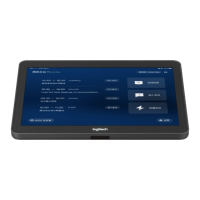

 To Next Page