10 English
Logitech
®
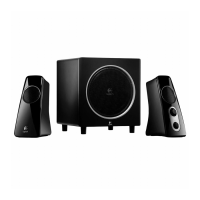
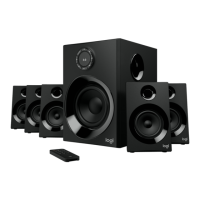
SurroundSoundSpeakersZ506
The speaker system does not power on?
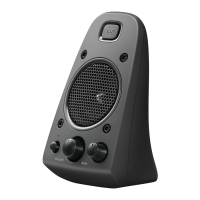
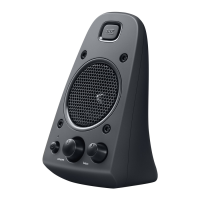
• Pressthepowerbuttonontheright-frontspeaker.TheLED
abovethepowerbuttonshouldlight.
• ChecktheRS-232connectionfromtheright-frontspeaker
tothebackofthesubwoofer.
• TrypluggingthesubwooferintoadifferentACoutlet.
• Ifyou’reusingapowerstrip,checkandresetthesurge
protectorifithasbeentripped.
• HasthecircuitbreakercontrollingpowertotheACoutlet
beentripped?Ifyouhaveaccesstoyourhome’sjunction
box,checkfortrippedcircuitbreakers,orhaveaqualied
electriciandoit.
One or more speakers produce little or no sound?
• Rotatethevolumeknobontheright-frontspeakertothe
12o’clockposition.
• Ifheadphonesarepluggedintotheright-frontspeaker,
unplugthem.Soundfromthespeakersystemismuted
wheneverheadphonesarepluggedin.
• Checkallspeakerconnections.Makesuretheleft-front
speakerispluggedintotheblackRCAjackonthebackof
thesubwoofer.(Refertostep3oftheSetupinstructions.)
Allspeakercableconnectorsmustbefullyseatedintotheir
outputjacksonthebackofthesubwoofer.Cableconnectors
andtheircorrespondingsubwooferjacksarecolor-codedfor
properconnection.
• Checktheinputaudiosourceconnection(refertostep4
oftheSetupinstructions):
Sound-card connection(5.1surroundsound):Useboth
CablesAandB.Yourcomputer’ssoundcardmustbe5.1
enabledanditmusthavegreen,black,andorangeoutput
jacks,ortheirequivalent.
Stereo connection:UseCableAtoconnecttolaptops,
MP3players,anddesktopcomputerswithstereosound
cards.Foradesktop/laptop,plugthecableintotheline-level,
speaker,orheadphoneoutputjack;plugtheothercableend
intothegreeninputjackonthebackofthesubwoofer.
Game-console connection:UsestereoRCAcables
(notincluded).PlugtheRCAcablesintotheredandwhite
RCAinputjacksonthebackofthesubwoofer.
• Ifyouareusingacomputer,checkvolumeandbalance
controlsinyourcomputer’smediaapplicationandoperating
system.(Formoreinformation,seeChecking operating
system volume/balance controls.)
• ForaPS3gameconsole,checkoutputsettings.(Formore
information,seeChecking sound output settings for a PS3
game console.)
• Quityourmediaapplication(computer/gameconsole),
andthenrestartit.
• Connectthespeakerstoanotheraudiosource
(e.g.,MP3player).Iftheywork,yourcomputer’ssoundcard
(orgameconsole)maybethecauseoftheproblem.
Checking operating system volume/balance controls
• Windows® XP:GotoStart/Control Panel/Sounds and
Audio Devices/Audiotab.Selectyoursoundcardasthe
soundplaybackdevice.ChoosetheVolumetabandadjust
theVolumeslider.DonotselecttheMuteoption.
• Windows® Vista and Windows® 7:GotoStart/Control
Panel/Sounds/Playback Devicestab.Selectyour
soundcardasthesoundplaybackdevice.Verifythatthe
SpeakerIconisnotmuted.
• Mac OS® X:OpenSystem PreferencesandselectSound/
Outputtab.Selectyoursoundcardasthesoundoutput
deviceandadjusttheOutputVolumeslider.Verifythatthe
Muteboxisnotchecked.
Checking sound output settings for a PS3 game console
• WiththePS3turnedon,useagamepadcontrollerandthe
XrossMediaBar(XMB)tospecifyaudiooutputsettings.
• GotoSound Settings/Audio Output Settings/Audio
Input Connector.Choosethepictureshowingtheredand
whiteRCAstereocables.LeaveSoundSettingsandXMB.
• RefertothePS3gameconsoledocumentationformore
information.
HelpwithSetup


 To Next Page
 Loading...