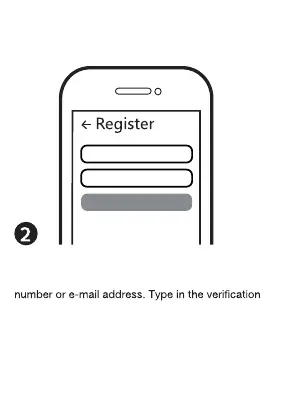
Log in or register your account with your mobile
code sent to your mobile or mail box, then set your
login password. Click "Create Family" to enter into
the APP.
Mobile number/e-mail address
Region
Obtain verification code
Before making the reset operation, pls make sure
the Zigbee Gateway is added and installed to
the WIFI network. Ensure that the product is within
the range of Zigbee Gateway Network.
Open the control panel of the ZigBee
gateway on the App
Press down the reset key for about 10 seconds
until the indicator light flash quickly for pairing.
(If you wait for more than 120 seconds you need to
repeat this passage.)
Zigbee Gateway
Click "+" (Add sub-device) to select the suitable
product gateway and follow the on-screen
instruction for paring.
The pairing will take about 10-120 seconds to
complete depending on your network condition.
Connecting
Device found
Register device to the smart cloud
Initializing device
Make sure your router,mobile,and
device are as close as possible
2%
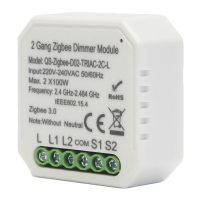
When pairing is done, the Zigbee Dimmer
will be shown on the App.
All Device
Zigbee
Dimmer
Module
Device added successfully
Dimmer
Finally, you can control the device via your
mobile phone.
SYSTEM REQUIREMENTS
• WIFI
Router
• ZigBee gateway
• iPhone, iPad (iOS 7.0 or higher)
• Android 4.0 or higher
Smart phone
WIFI wireless
router LAN port
Zigbee gateway
USB cable
LAN
cable
Adapter
Reset Key
Indicator Light


 To Next Page
 Loading...