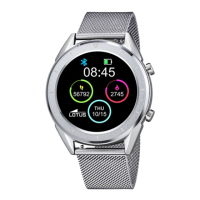
8
I. How the Lotus
smart watch
functions.
0.1 How to activate.
Your watch is controlled using both the full
touch screen “A” and the pusher button “B”,
is the return key. Long press the pusher but-
ton for power on / o.
0.2 Charging Guide
To charge the watch please connect the cable
to the USB power supply and then to watch
as shown below.
*A magnet in the charger head guides the
charger to the correct position. The two con-
tacts of the USB cable should not forced to
connect to the conductor in the opposite way
as it may cause a short-circuit.
1.1 Standby mode Interface:
1) Swipe right for the push message interface.
2) Slide down for the drop-down menu, Blue-
tooth connection status, QR code, power &
brightness adjustment.
3) Slide le for the step count, distance and
calorie count functions.
4) Swipe up to access the functions menu.
5) Press and hold the standby dial interface
to slide to select the dial design. Aer select-
ing design, long press to conrm.
1.2 Push messages
Swiping right on the standby interface brings
up the push message interface. Once the
smart watch is bound to the APP, please set
the notication permission to ‘enabled’ sta-
tus. New messages received in the notica-
tion bar of the mobile phone will be pushed
to the watch. A total of 8 messages can be
saved in the watch. Old messages will be re-
placed by new messages that are received.
1.3 Drop-down menu
Slide down on the standby interface to
access the drop-down menu.
1) Icon 1: shows the Bluetooth connection status.
2) Icon 2: press to adjust the screen brightness.
3) Icon 3: scan the QR code to download the APP.
4) Icon 4: battery charge display.
1.4 Step count
Swipe le to see the step count which is en-
abled by default. This interface displays the
current step counting of the watch. Data is
cleared at 00:00 am every day.
1.5 Sleep monitor
Swipe le again for the sleep monitoring
function, which works from 21:00 to 9:00 on
the following day. Once the smart watch has
generated the data, the sleep monitoring
mode is exited. Synchronize the smart watch
with the APP to save your sleep data.
1.6 Bluetooth music
Android: Aer connecting the watch via
the phone settings, turn on the mobile mu-
sic player and control the music playback /
pause and switch songs on the watch. It is
not necessary to bind to the APP. If the watch


 To Next Page
 Loading...