hi
F
ace
192
k
H
z
/24bit digital audio interface
REVISION 1.o – NOVEMBER 2010
Copyright © 2010, M2Tech Snc di Manunta & Marino
7
M2Tech
www.m2tech.biz
3. Driver installation
3.1. Obtaining the driver
The drivers for hiFace are available on the M2Tech website, in the download page
(www.m2tech.biz/download.asp). Download the driver you need for your computer and
operating system. Windows drivers are contained in zip files, Mac drivers are contained in
dmg files.
3.2. Installing the driver on a Windows-based PC
Create a temporary folder in the hard disk of your computer (you can even create it on the
desktop). Then, double-click on the zip file to open it. Select and drag all files in the
temporary folder: this automatically unzips all files.
3.2.1. Automatic (guided) installation
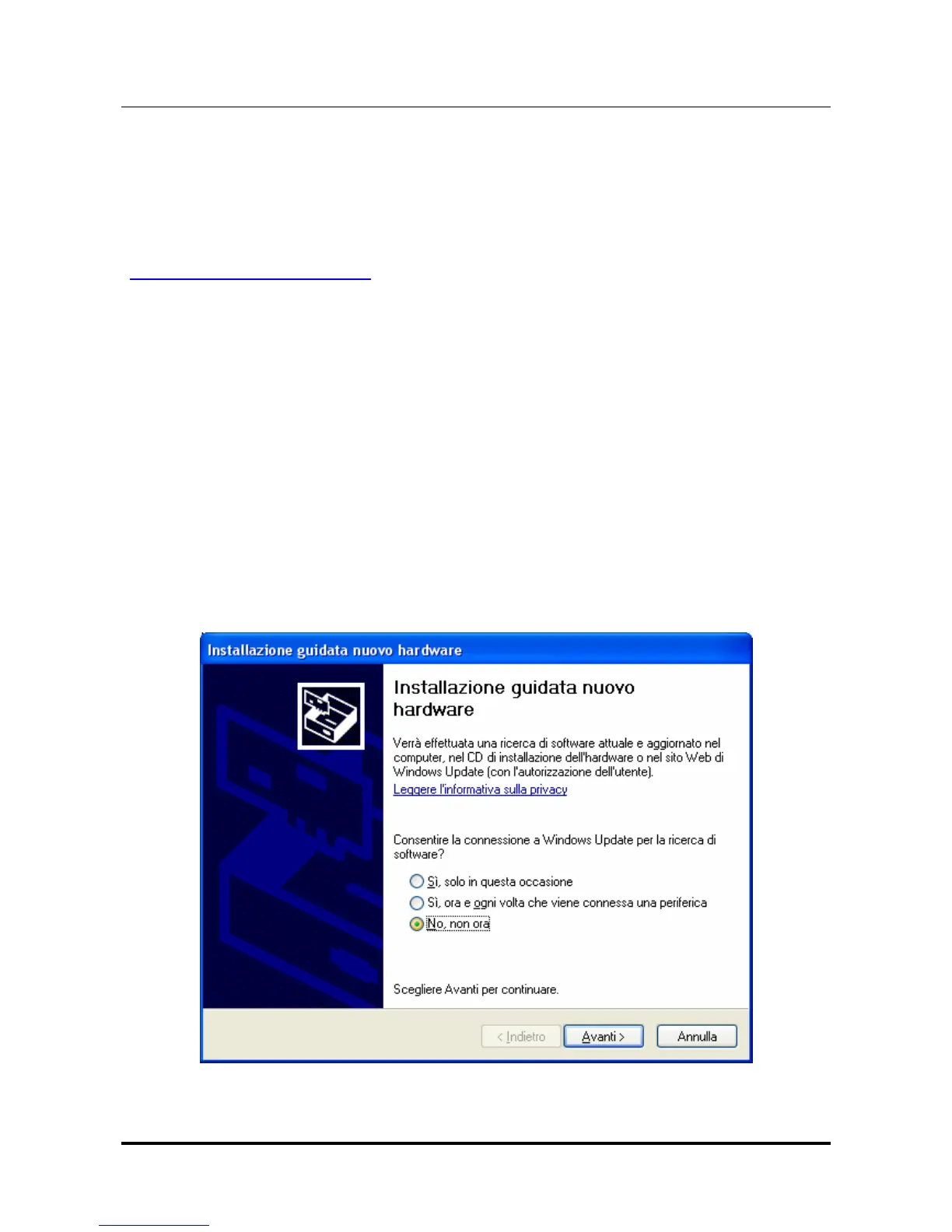
Connect hiFace to the PC. Following the negotiation process, the driver installation wizard
is automatically launched. Select the option “Not now”, as in Figure 2.
Figure 2



 To Next Page