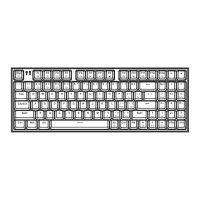
L101*W141mm
Player
Previous Track
Next Track
Play / Pause
Home
My computer
Calculator
Mute
Volume Down
Volume Increase
Mail
Stop
Product features
Product appearance
TECH SPECS
Getting Started
Power on
Troubleshooting
PgUp PgDn
End
Ins
2.4G
Del
Home PgUp
End PgDn
Home
ScrLk Pause
FN+F2: Home
FN+F5: Previous Track
FN+F8: Stop
FN+F11: Volume Increase
FN+(]})=DEL
FN+(.>)=PgUp
FN+P=Pause
FN+F1: My computer
FN+F4: Player
FN+F7: Play / Pause
FN+F10: Volume Down
FN+([{)=INS
FN+(’”)=End
FN+ O=ScrLk
FN+F3: Calculator
FN+F6: Next Track
FN+F9: Mute
FN+F12: Mail
FN+(;:)=Home
FN+(/?)=PgDn
Warranty Card
User Manual
Certificate
Please read the instructions carefully before us
ing this
product and keep it well for reference.
K500-B94W
Three-Mode
AS COOL
AS YOU ARE
Certificate
MACHENIKE Certified
•Shape design concept that meets ergonomic principles.
•Anti-ghosting keys with N-key rollover, suitable for all kinds of games.
•Using a curve that follows the natural motion of the hand for comfortable
keystrokes.
•High-quality mechanical switches for a comfortable tactile experience.
Function overview
•Wired+2.4G+Bluetooth (3.0+5.0) "three-mode connectivity, strong compati-
bility with Bluetooth and fast reconnection speed.
•The Bluetooth supports 3 channels, allowing connection to 3 devices and easy
switching between them. Each channel is indicated by a specific LED color.
•Large capacity lithium battery with built-in protection board
•Low battery reminder function to grasp battery charging time.
•Multi-level sleep mode, button wake-up function, and complete battery
shutdown can better save power
•Support Windows XP/Vista/7, 8 ,10,11; Mac OS X, Linux, Android and above
operating systems.
The key value and lighting eect can be redefined with the corresponding driver.
1. Wired USB mode--- toggle the switch at the bottom of the keyboard to the
OFF position: Connect the included TYPE-C USB cable to the keyboard and the
eective USB port of the computer (if this keyboard is connected for the first
time, the computer operating system will automatically install the adapted
driver for the keyboard and establish a connection), the "M" LED of the keyboard
will flash with white light and then stay lit in red, the keyboard will be charged
while working, and stay lit in white after full charge (indicating that the
keyboard is now working in the USB wired state).
RGB Lighting eect
Main key area lighting eect mode: RGB 20 kinds of lighting eects, switch with
FN+N, press FN+PRTSC to toggle the front main key area backlight; backlight
color adjustment: switch with FN+M, not available during (rotating fan, rainbow
waterfall, blooming flowers, and dreamy rainbow) lighting modes, 5-level
speed adjustment with FN+“←/→”, 5-level brightness adjustment with
FN+“↑/↓”, when the speed or brightness is at its limit, the CAPS key flashes red
three times as a prompt.
Warning:
1. The output of the external power adapter is 5V /2A or 5V / 1A
2. The output of the mobile power bank supply is 5V / 2A or 5V /1A
Using a mobile power bank or an external power adapter outside the
above-mentioned range may cause certain secondary hazards or damage to
the keyboard itself.
If the keyboard couldn’t be connected to other devices or used properly in
Bluetooth or 2.4G mode, please try as the following steps:
1. Use a brand Bluetooth adapter, otherwise compatibility issues may occur. The
installation of the adapter driver can refer to the adapter manual.
2. Before connecting the keyboard, make sure that you have completed the
installation of the Bluetooth adapter and that the computer's Bluetooth device
has been started normally.
3. If the connection fails, disable or delete the original keyboard connection in
the Bluetooth device selection, and then reconnect following the pairing steps
above.
4. Make sure that the Bluetooth device of your computer has not changed. If it
has changed, you need to pair it again.
5. If your computer's Bluetooth device is also connected to other Bluetooth
terminals, check if the speed of the computer's Bluetooth device is sucient.
6. If there is an abnormality in 2.4G mode, follow the steps to re-code the
keyboard and device (unplug the 2.4G receiver and plug it into another valid
USB port).
7. Check whether the keyboard has a low battery indication and charge the
keyboard according to the charging instructions above.
8. Make sure the keyboard is used within a working range of 10 meters.
Low battery indication
1. Low battery indication: When the keyboard is in 2.4G or Bluetooth working
mode, as the use time increases, the built-in battery voltage of the keyboard
will gradually decrease, when it drops to 3.3V, the "M" LED will flash slowly with
red light, reminding you to charge in time.
Automatic sleep/wake-up/manual power o function
When the keyboard is in the 2.4G or BT working mode, if it is not used for 30
seconds, it will enter the power-saving state (turning o both the "A" and "M"
LED lights and all keyboard backlight), if it is not used for 30 minutes, the
keyboard will enter a deep power-saving state, ② To wake up the keyboard and
resume use from any power-saving state, simply press any key.
Description of the status of the indicator light
1. When CAPS ON is activated, the "A" LED will be a solid red .
2. When Num Lock is activated, the "NUM" key will have a solid red light, and it
will remain on even when the keyboard backlight is turned o.
3. When the WIN key is locked, the WIN key light is always on, and it is still always
on when the keyboard backlight is turned o
4. The "M" --- working mode (USB wired mode/2.4G mode/Bluetooth mode)
and the indication of low power and charging status are described above.
Restore factory settings
Multimedia function
Press and hold FN+ESC for 3 seconds to restore factory settings.
2. Charging notes: This keyboard supports the charging mode of mobile power
bank/ external power adapter / computer eective USB port, For instructions
on the charging status, please refer to the description in Step 1 "Working mode
selection and charging indication".
3. Bluetooth mode--- toggle the switch at the bottom of the keyboard to the BT
position: ①Firstly press and hold the "FN +1/2/3 keys" of the keyboard for 3
seconds, the keyboard enters the pairing mode of Bluetooth channel 1,2,3, the
"M" LED of the keyboard will blink blue/cyan/pink, and the keyboard will
broadcast at the same time: K500-B94W 3.0 and K500-B94W 5.0 these two
devices. Follow the appropriate steps and adapt the keyboard to the device,
when the pairing is successful, the "M" LED on the keyboard will stay lit in
blue/cyan/pink, If you connect the included Type-C USB cable to the keyboard
and a charging adapter (or an available USB port on your computer) at this
time, the keyboard will charge while working in Bluetooth mode. The "M" LED
on the keyboard will stay lit in red while charging and turn back to blue/cy-
an/pink when fully charged (indicating that the keyboard is now working in
Bluetooth mode). ② To switch between the three paired Bluetooth channels,
simply press and hold the FN + 1/2/3 keys.
4. Power o and charging mode --- Toggle the switch at the bottom of the
keyboard to the OFF position. When not connected to a computer via USB, the
keyboard will be in power-o mode. If the included Type-C USB cable is
connected to the keyboard and a charging adapter, the keyboard will be in
charging mode.
2. 2.4G mode---Toggle the switch at the bottom of the keyboard to the 2.4G
position: firstly press and hold the "FN + 4 key" of the keyboard for 3 seconds to
enter the 2.4G paring mode, the "M" LED of the keyboard will blink green quickly
(waiting for pairing for 20 seconds), and then plug the receiver into the eective
USB port of the computer, the "M" LED of the keyboard will stay lit in green
(indicating that the keyboard is now successfully paired with the receiver and is
now in 2.4G mode), If you connect the included Type-C USB cable to the
keyboard and a charging adapter (or an available USB port on your computer)
at this time, the keyboard will charge while working in 2.4G mode. The "M" LED
on the keyboard will stay lit in red while charging and turn back to green when
fully charged."
Model
Connectivity
Key number
Multimedia key
Anti-Ghosting Key
Battery
Size
Weight
Cable length
Execution standards
K500-B94W Three modes Wired blue switch
K500-B94W Three modes Wired red switch
K500-B94W Three modes Wired brown switch
Three modes Wired /2.4G / Bluetooth
94 keys
12
N-Key Rollover
2500 mAh
353.3*127.9*34.6mm
692 g
About 1.6m
GB/T 14081-2010
Multimedia key Function Activation method
PRODUCT LIST
Keyboard*1, Manual*1, Data Cable*1, Replacement switches *2,
keyswitch Clip*1, Keycap Puller*1.
Machenike warranties policies
1. User can enjoy 1 year free warranty from date of purchase if the
user properly use the product according to the guidance of the
user manual;
2. Machenike will not provide free warranty service if the device is
defective due to following personal reasons of the users:
(1) Defect caused by unauthorized disassembly and assembly or change;
(2) Defects caused by drop, liquid inlet during usage, moveing
process or not proper power supply;
(3) Defects cuased by lacking of proper maintainance;
(4) Defects causded due to operation not following the user manual;
(5) Defect or damage caused by third party product, service or activities;
3. When free warranty service is required, you should provide clear,
complete and accurate sales invoice and warranty card, you can request
the seller to provide above documents when you purchase the products.
4. Service not included in the warranty scope will be charged accord-
ing to Machenike's regulations.
Completion
Date
Product performance defective sheet
Performance fault description
Date of
repair
Signature of
engineer
Remarks
1.Please keep the warranty well, the warranty card and purchase
voucher is required when applying for warranty service;
2.Warranty period is 1 year from purchase date on the purchase
voucher;
3.The below situations not included in the warranty scope, but
charge service for life time of the device is provided.
(1) Waranty card or purchase voucher is not available;
(2) Invoice is altered or changed;
(3) Damage cauded by accident of improper usage;
(4) Damge caused by unauthorized repair;
(5) Out of the warrany period, the device can be used after repair.
1 2 3 4
6 7 8
5


 Need help?

 General