21
INFORMATION
UPDATE YOUR MiniMad SD-CARD
First, you need to download the latest image of the MiniMad system (8 and 16GB versions are available)
and the Etcher ashing tool.
Note that you don’t need to decompress the downloaded zipped images.
All those les are available to download on the MadMapper Yourspace page.
On both platforms:
1. Insert your MiniMad SD-card in your computer’s card-reader.
2. Launch Etcher application. ( https://www.balena.io/etcher/ )
3. Select the downloaded .zip disk-image le as source.
4. Select the SD-card drive as target.
5. Click “Flash!” to start the operation.
The ashing operation can take up to 20-30 minutes.
All those les are available to download on MadMapper Yourspace page.
ACTIVATE YOUR MiniMad SD-CARD
After you ashed your MiniMad SD-card with the latest system image, you will need to activate it in order
to export.
The procedure only takes a few seconds:
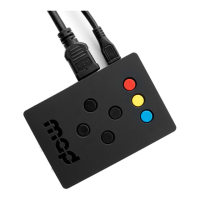
1. Insert the SD-card in the MiniMad
2. Connect the MiniMad to any HDMI display
3. Plug the power cord to turn the miniMAD on
4. Follow the procedure displayed on the screen
Note that the MiniMad red light is blinking when the activation process is required.


 To Previous Page
 Loading...