6
EXPORT
In the case your mapping consists in a single fullscreen-quad with no color correction applied - typically
when displaying on a TV-screen, a video-wall, a straight video-projection or perspective-corrected by
the projector itself - MadMapper will propose you to switch the Fullscreen maximum quality mode on, so
your media will be exported using the best possible resolution (up to 1080p30).
Note that when this mode is on, mapping and color correction controls are disabled on the MiniMad.
You can also specify a nickname for the the Bonjour OSC Discovery, or disable it completely to prevent
the miniMAD from appearing in applications supporting Bonjour. (cf. CONTROLS / OSC section for more
details).
Finally, click the “Export” button to start the export.
The process may take some time depending on the number of movie les and their duration.
MadMapper will avoid transcoding movie les that are already optimized on the SD-card.
SYNCHRONIZATION
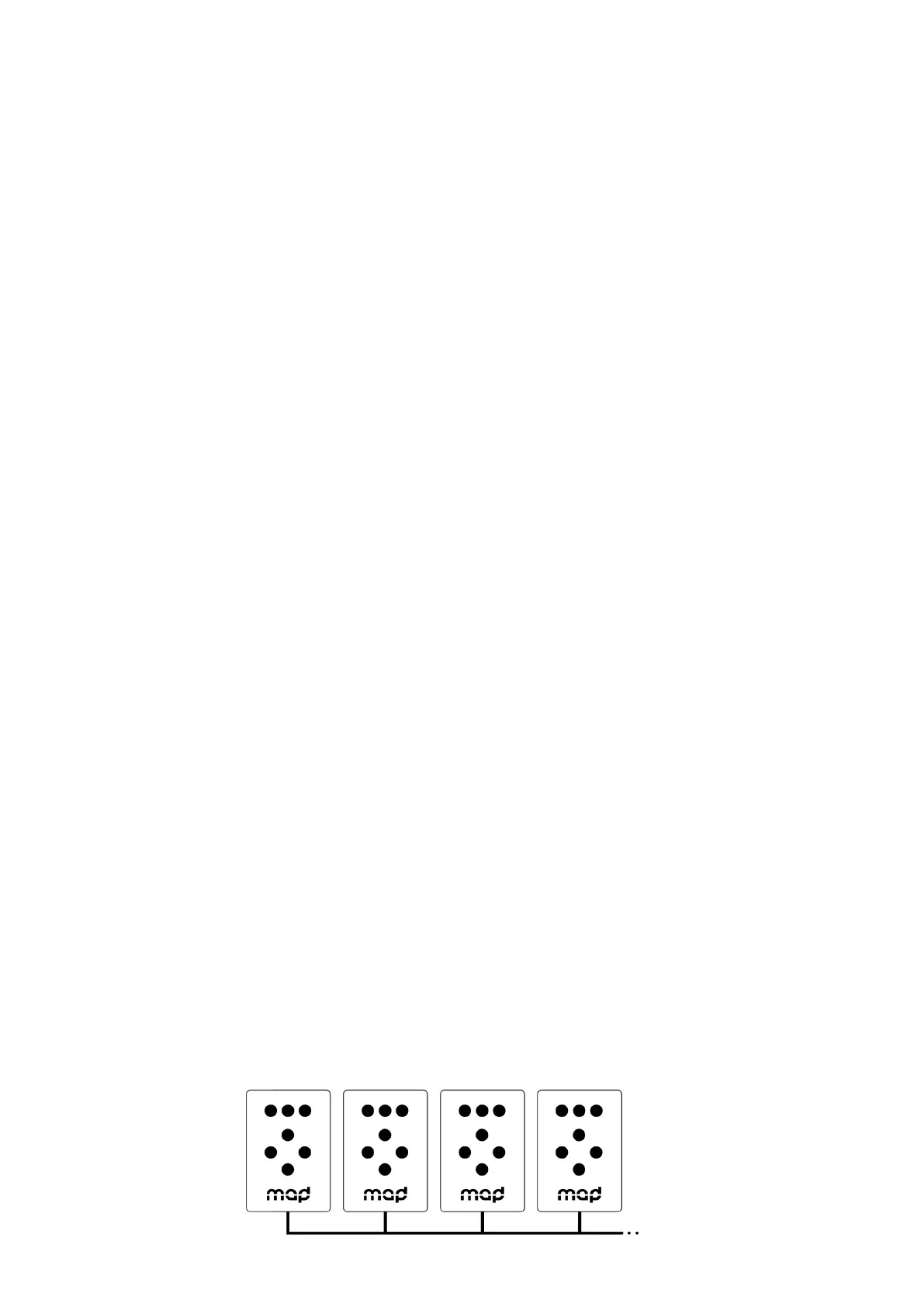
Connect the MiniMads on the same ethernet network to synchronize media-playback automatically.
Movie synchronization happens on every MiniMads playing a movie with the exact same frame count
and framerate, even though their le names are dierent.
Every media-related action made on any MiniMad happens instantly and automatically to every
MiniMads:
- media change
- pause
- restart
- playback mode
- audio mode
- image display-time
Note that media change works properly if every MiniMads contain a le with the same name, even
though its content is dierent.
Create a MadMapper project using the video-wall template, import your pictures and videos,
and export the dierent projectors to as many synchronized MiniMads.
The setup couldn’t be easier: Just connect all your MiniMad with an ethernet cable to a network switch,
and wait until they automatically synchronize.
Note that you can also connect two MiniMads directly using an ethernet cable.
Ethernet cables
FEATURES
MiniMad VIDEO


 To Next Page
 Loading...