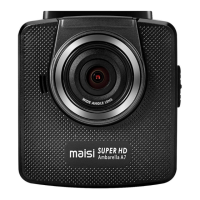
Page 11 of 16
4 To Use the Camera for Taking Pictures ONLY
4.1 Enter Picture Mode
If you want to use the camera to take pictures only (not record), then you can change it to the
Picture Mode. To enter the Picture Mode, press Mode button (left button) to change. In Picture
Mode, you can see a camera icon like this located to the top left corner of the screen.
Note: If camera is in Recording Mode and it is recording (the red dot blinking on top left
corner and the recording indicator is blinking blue), press OK button to stop the recording first,
and then press Mode button to go to Picture Mode.
4.2 Take Pictures
Under Picture Mode, you can press OK button to take pictures.
In case of dim light or at night, you can long press Left button to turn on the front LED light to
get more light compensation.
4.3 Enter Menu for Picture Mode
To access the menus for Picture Mode, press the Menu button once when you are in Picture
Mode.


 To Next Page
 Loading...