EasyManua.ls Logo

Manhattan 164115 - Page 6

Manhattan 164115
12 pages
Print Icon
To Next Page IconTo Next Page
To Previous Page IconTo Previous Page
Loading...
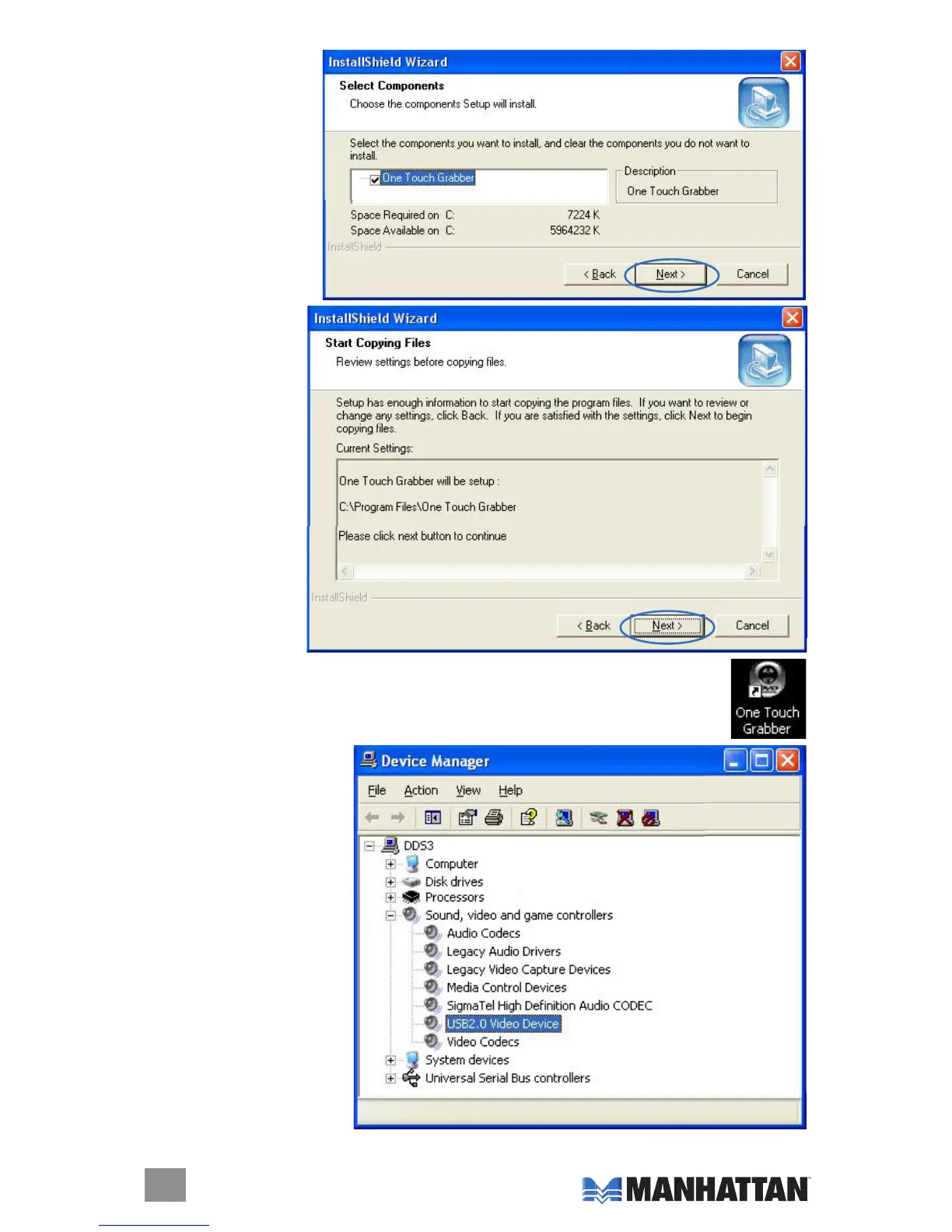
9. On the Select
Components screen,
highlight the grabber
listed in the selection
eld (as shown at
right) and click “Next.”
10. When the Start
Copying Files
screen displays,
click “Next” to
continue. During
the le-copying
process, a Setup
Status screen
displays to indicate
progress.
11. When the Hardware
Installation warning
prompt displays,
click “Continue
Anyway.
12. When the Setup
Finished screen
displays to indicate that installation is complete, select “Yes, I want to restart my
computer now” and click “Finish.” The grabber icon (right) will appear on the
desktop.
13. With the installation
complete, conrm the
success of the procedure
by going to the control
panel and selecting
System,” then ”System
Properties,” then “Device
Manager.” You should see
the drivers listed.
6

Related product manuals