4a
4b
3b
3a
2
1
For Mac NotebooksFor Mac Notebooks
4a
4b
3b
3a
2
1
For Mac NotebooksFor Mac Notebooks
The T2G-DP-IF SKU has the same specifications as the
T2G-DP-MIF SKU, but does not include the Mini-DisplayPort
to DisplayPort adapter (P/N: CAB-MDP-DP) which needs
to be purchased separately.
Thunderbolt
™
or Mini DP
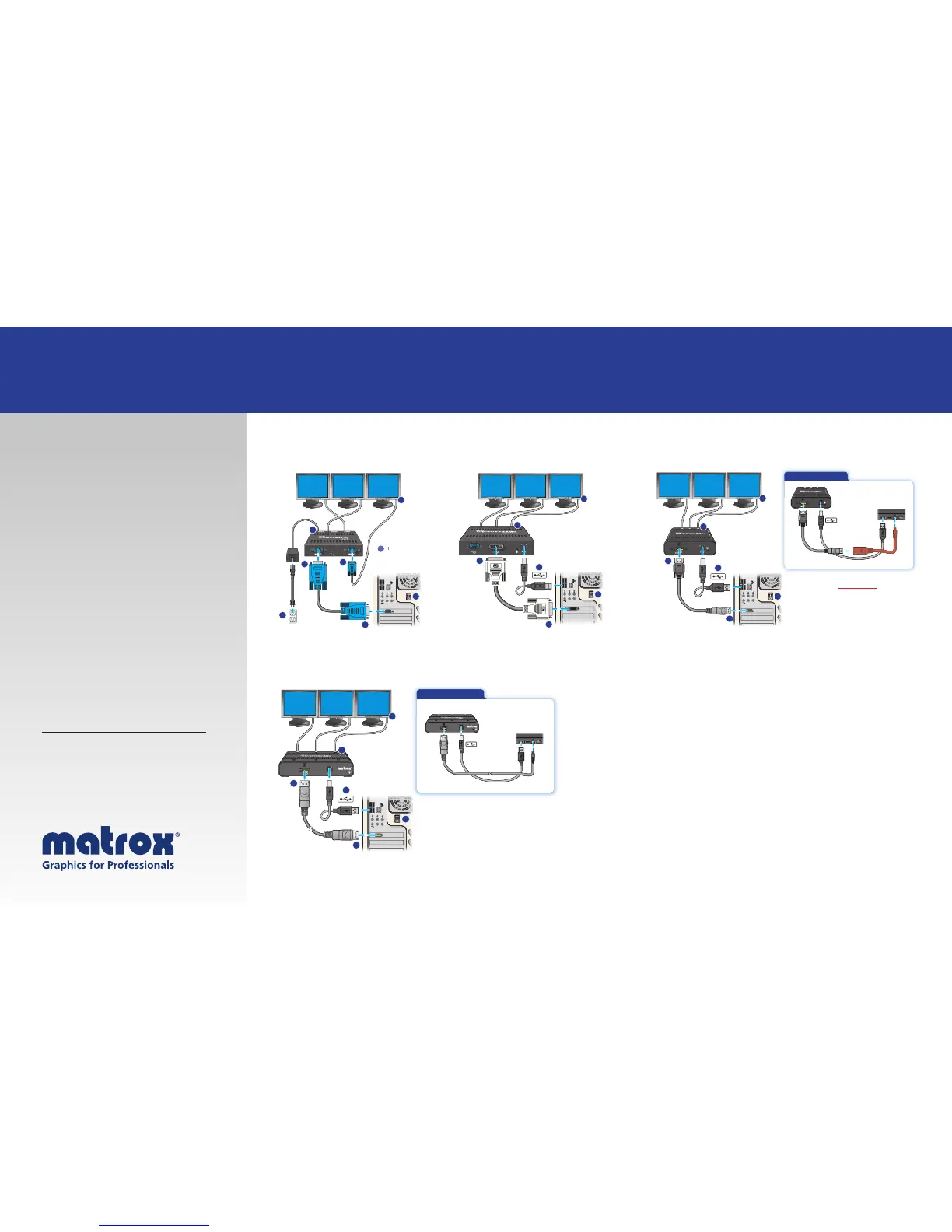
Matrox TripleHead2Go Analog Edition Matrox TripleHead2Go Digital Edition
Matrox TripleHead2Go Digital SE
Matrox TripleHead2Go DP Edition
Step 1 – Turn off your computer.
Step 2 – Connect the USB cable into
the TripleHead2Go and then into the
USB port of your computer.
Step 3 – Attach the Matrox monitor
cable first into the graphics connector
on your computer and then into the
TripleHead2Go.
Step 4 – Connect the first monitor
cable to your monitor and then to
your TripleHead2Go. Repeat this step
depending on number of monitors
connected.
Step 5 – For TripleHead2Go Analog
Edition only. Connect the external
power supply. First attach to your
GXM, then to an electrical outlet.
For detailed instructions, visit the
Matrox user guides page:
www.matrox.com/graphics/en/support/manuals/



 To Previous Page