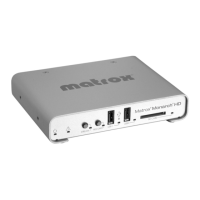
Matrox is a registered trademark and Monarch is a trademark of Matrox Electronic Systems Ltd. Windows is a registered trademark of
Microsoft Corporation. Mac OS is a registered trademark of Apple Inc.
F11286-501-0211 Copyright © 2014 by Matrox Electronic Systems Ltd. All rights reserved. Printed in Canada.
On a network without a DHCP server
Without a DHCP server, an IP address is not assigned to the Monarch HD. You must assign a static IP address
and then configure your computer’s network to allow a connection between your computer and the Monarch HD.
The default IP address 169.254.1.11 is provided when in Static IP mode.
1 Connect the Monarch HD to your computer using one of the following methods:
$ Connect an Ethernet cable from the Monarch HD LAN port to your computer’s Ethernet port.
$ Connect an Ethernet cable from the Monarch HD LAN port to your computer’s network switch.
2 Change your computer’s IP address and subnet mask to the following:
$ IP address 169.254.1.10
$ Subnet mask 255.255.0.0
This is how your computer will be able to connect to the Monarch HD default static IP address 169.254.1.11. For
more information on how to change these settings on your computer, see your operating system’s documentation.
If you have multiple Monarchs on the same network, they must each have unique IP addresses. You can change
the IP from the Command Center.
Step 3 Accessing the Monarch HD Command Center
The Command Center is where you configure and control a single Monarch HD, or multiple Monarch devices on
the same network. You must have a Monarch HD IP address to access the Command Center.
1 From your web browser, type the Monarch HD IP address in the address field, and then press ENTER.
2 Log in to the Command Center. Click a menu item on any Command Center page other than the Status
page, and then enter the default username (admin) and password (admin).
3 Connect your input/output devices to Monarch HD, and then configure and control your Monarch HD
device as explained in the Monarch HD documentation.
Getting the latest firmware, documentation, and utilities
To ensure that you have the latest firmware for your Monarch HD device, firmware updates are available on our
website. To download the latest Monarch HD utilities for updating firmware or for finding a device on the
network, visit the Support section of our website at www.matrox.com/video/support. You can view the current
firmware version of your Monarch HD device in its Command Center.


 To Previous Page
 Loading...