4
Program this Remote Control by first find the codes
for the components you want to program (starting on
page XX) and then follow the steps below:
1. Turn on the component (in this example, the TV).
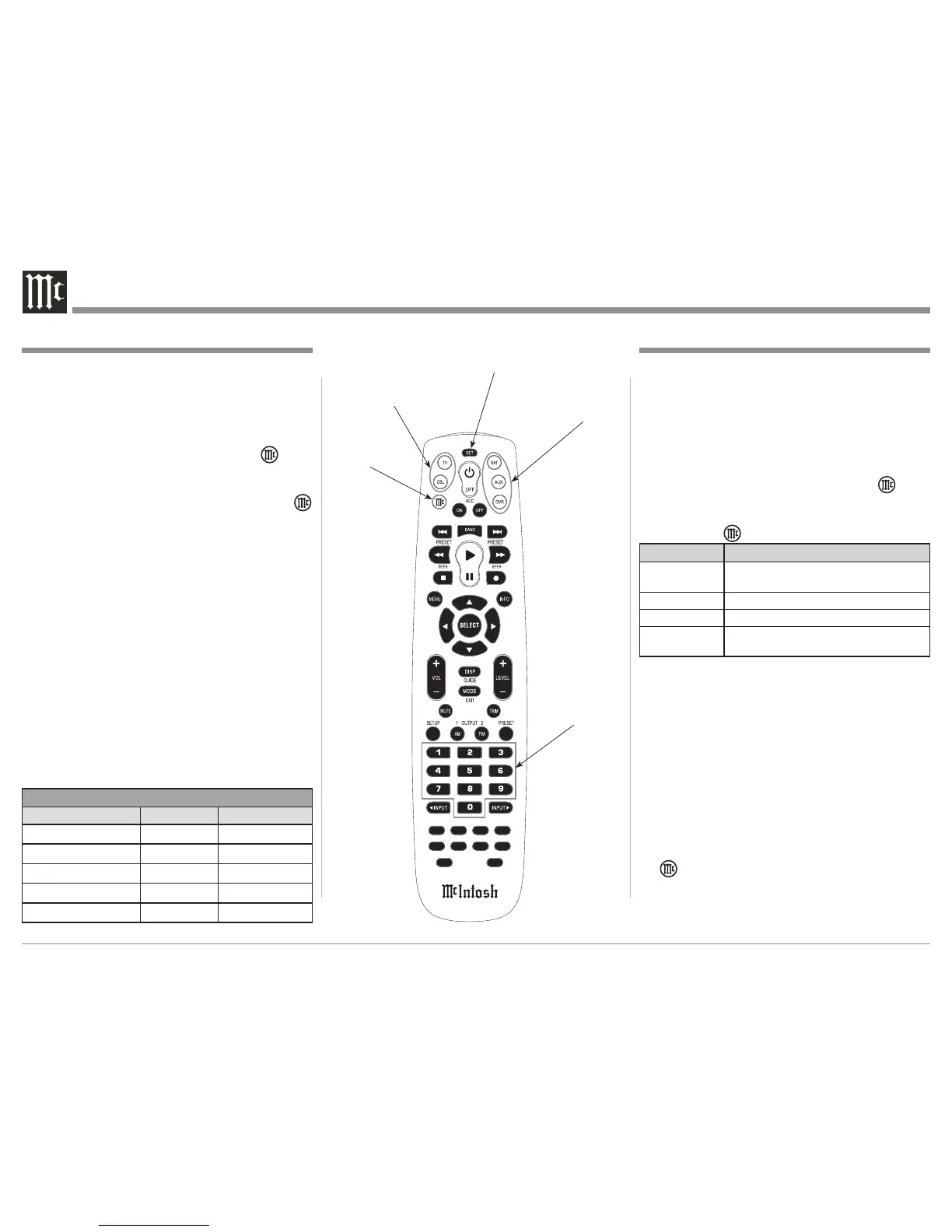
2. Press TV Push-button on the Remote Control to be
programmed. Refer to figure 5.
3. Press and hold SET Push-button until the Push-
button illuminaton blinks twice, then release.
4. Enter the first five-digit code for the component
(TV) and brand that you wish to program. The
Push-button blinks once as each digit is entered. If
the code is valid, the Push-button blinks twice.
Note: If the Push-button does not blink twice, repeat
steps 2 to 4 and try entering the code again.
5. Aim the McIntosh Remote Control at the compo-
nent and press Power Off. The TV should turn
Off. If it does not, repeat steps 3–5, trying each
code for your brand until you find one that works.
If you cannot find a working TV codes refer to
“Searching Codes” on this page.
Note: There might be more than one Program Code
Number capable of switching power Off to the
TV. Choose the Code Number with the great-
est number of desired active commands for the
TV to be controlled.
6. Repeat steps 1 to 5 for the other components you
want to control. For future reference, write down
each working component code below:
HR Series Remote Control Programming
Assigned Push-button Component Program Code
TV
CBL
SAT
AUX
DVR
Programming a Component
If your component (TV in the Programming a Compo-
nent example) does not respond to the Remote Control
Control after trying all codes listed for your (TV)
brand, or if your TV brand is not listed, try searching
for your code:
1. Switch On the TV you wish to control.
2. Press the TV Push-button on the Remote Control
Control once.
3. Press and hold SET Push-button until the Push-
button illuminaton blinks twice, then release.
4. Enter 9 9 1, then the component group number (see
below). The Push-button blinks twice.
Code Number Component Group
0 Cable (Cable Converter, Video Accessories,
Satellite Receivers)
1 TV
2 VCR (VCRs, DVD Players)
3 Audio (Audio Ampliers, Audio Amp
/Tuners, CD Players)
5. Aim the Remote Control Control at the TV and
press Power Off. The Remote Control sends IR
Codes from its library to the selected TV, starting
with the most popular code first. If the component
responds, go to step 7.
6. If the component does not respond, press LEVEL+
Push-button and the Remote Control will test
the next code for that TV type. Continue to press
LEVEL+ Push-button until the TV switches Off.
Note: Press LEVEL- Push Button to try the previ-
ous code.
7. Now that you have found the correct code, press
SET to save the code that worked for the TV. The
Push-button will blink twice to indicate the
code has been saved. To search for other compo-
nent codes, repeat steps 1 to 5.
Searching for Code
Used to activate
Programming Mode
Push-buttons
available for
Programming
Push-buttons
available for
Programming
Flashes during
Programming
Figure 5
Push-buttons
used to enter
Program Code


 To Next Page
 Loading...