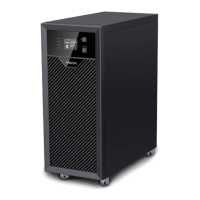
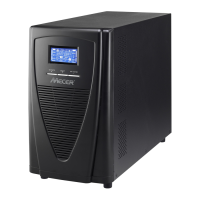
QUICK INSTALLATIONS & OPERATION
Inspection
Remove UPS from its package and inspect it for damage
before installation. If any damage is found, re-pack and
return the unit to the place of purchase.
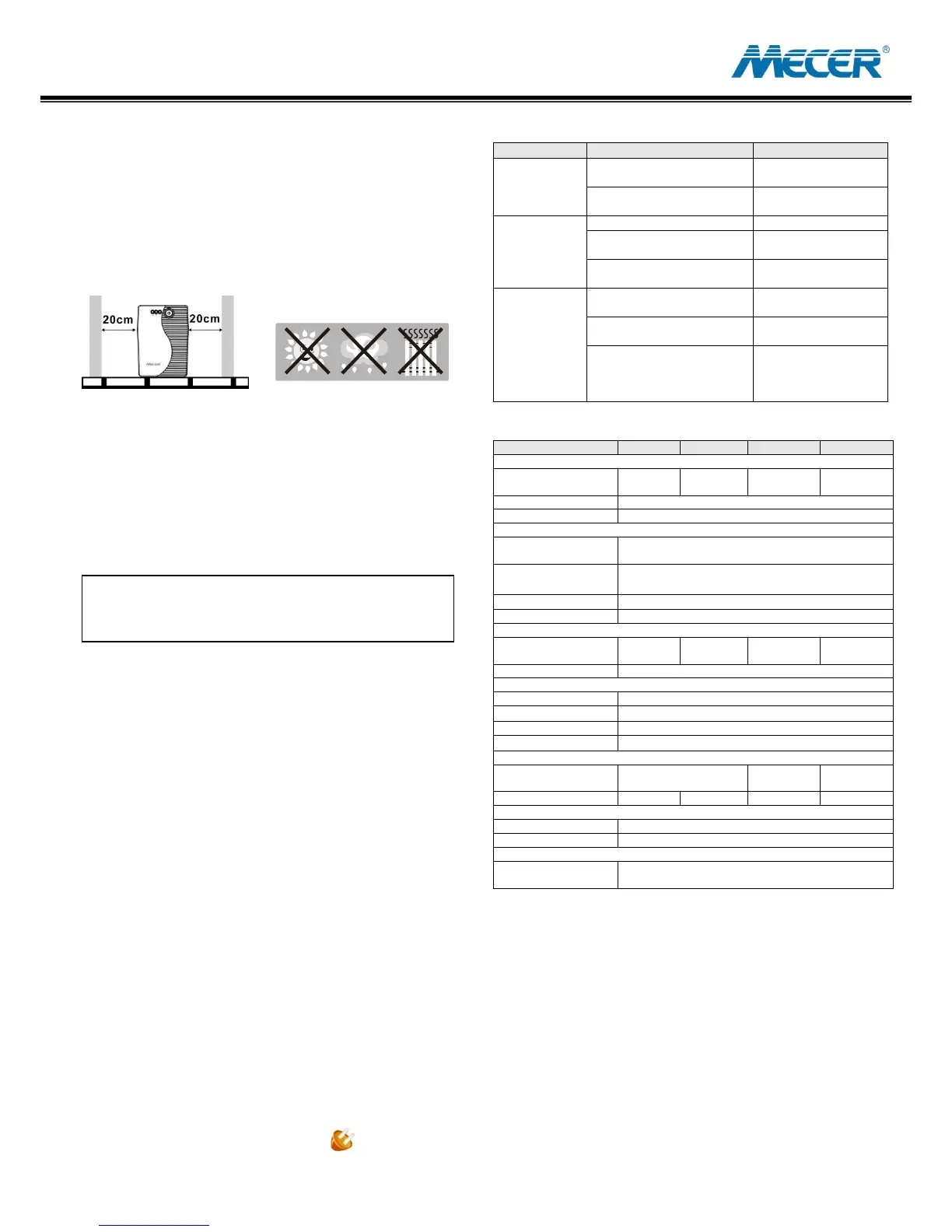
Placement
Install the UPS in a protected area that is free of excessive
dust and has adequate air flow. DO NOT operate the UPS
where the temperature and humidity is outside the specific
limits.
Connect to Utility & Charging
Plug in the AC input cord to the wall outlet. For the best
results, suggest to charge the battery at least 4 hours
before initial use. The unit automatically charges ts
battery while connecting to the utility.
Connect the Loads
Plug in the loads to output receptacles on the rear panel of
the UPS. Simply turn on the power switch of UPS unit,
then devices connected to the UPS will be protected by
the UPS.
Connect Modem/Phone Line
Connect a single modem/phone line into surge-protected
“IN” outlet on the rear panel of the UPS unit. Connect from
“OUT” outlet to the computer with phone line cable.
Connect Communication Cable
To allow for unattended UPS shutdown/start-up and status
monitoring, connect the communication cable one end to
the USB port and the other to the communication port of
your PC. With the monitoring software installed, you can
schedule UPS shutdown / start-up and monitor UPS status
through PC.
Turning On/Off the Unit
Turn on the UPS unit by pressing the power switch. Turn
off the UPS unit by pressing again the power switch. You
may check the front LED indicators for the status.
Cold Start Function
When the UPS is off and there is no power utility, it’s still
possible to cold start the UPS unit to power the loads.
Monitoring Software Setup
Please follow steps below to install the software:
1. Insert the included CD into CD-ROM drive and then
follow the on-screen instructions. If there no screen
shows when inserting the CD after 1 minute, please
execute setup.exe for initiating software installation.
2. After computer restarts, the monitoring software will
appear as an orange plug icon located in the
system tray.
TROUBLE SHOOTING


 To Previous Page
 Loading...