• Keep the router away from microwave ovens and other interference
sources (refrigerators, ovens, Bluetooth devices, etc.)
• Reduce the number of wireless clients and optimize the router’s
position.
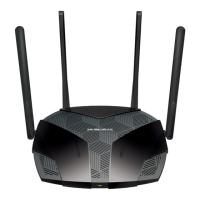
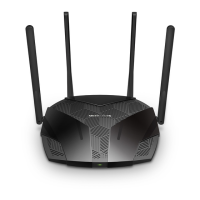
• Try to adjust the orientation of the antennas for maximum
performance. We recommend placing it as the same height with
wireless clients and also placing its antennas at 45 degrees or 0
degrees (parallel to the floor) to the floor, which will be more
effective. Since antennas always transmit weakly at the base, do not
place your wireless client device at the bottom of Mercusys wireless
device.
• If your Wi-Fi's signal strength is weak, try moving the router to
another location. Minimize obstructions between your router and your
computer or other devices. Obstructions such as walls between your
router and device can affect Wi-Fi signal quality.
• If your Wi-Fi signal is strong but the connection is still unstable, try
connecting to the router's 5G Wi-Fi. There are fewer interference
sources on 5G networks. (If your router does not support 5G Wi-Fi,
please skip this step.)
• Disable the smart connect on your router. (If your router does not
support it, please skip this step.)
• If there are multiple Wi-Fi networks in the area, please change the
router's Wi-Fi channel and channel width. This avoids multiple Wi-Fi
signals on the same channel, and reduces Wi-Fi interference
sources.
You may refer to Changing Channel and Channel Width on a Mercusys
Wi-Fi router. (You may change 2.4G channel width to 20MHZ, 5G
channel width to 20MHZ)
• Upgrade your router to the latest version.
You may refer to How to upgrade a MERCUSYS device to the latest
firmware.
Tips: How to disable the smart connect on the router?
Login to the webpage following the FAQ: How to log into the web-based
interface of the MERCUSYS Wireless Router?
Go to Advanced> Wireless> Wireless Settings and disable Smart
Connect.


 To Next Page
 Loading...