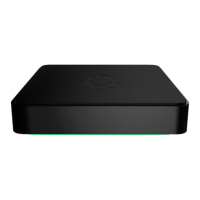
Pod Quickstart Guide
pg 3 | Pod Quickstart Guide | www.mersive.com | © Copyright 2019 Mersive
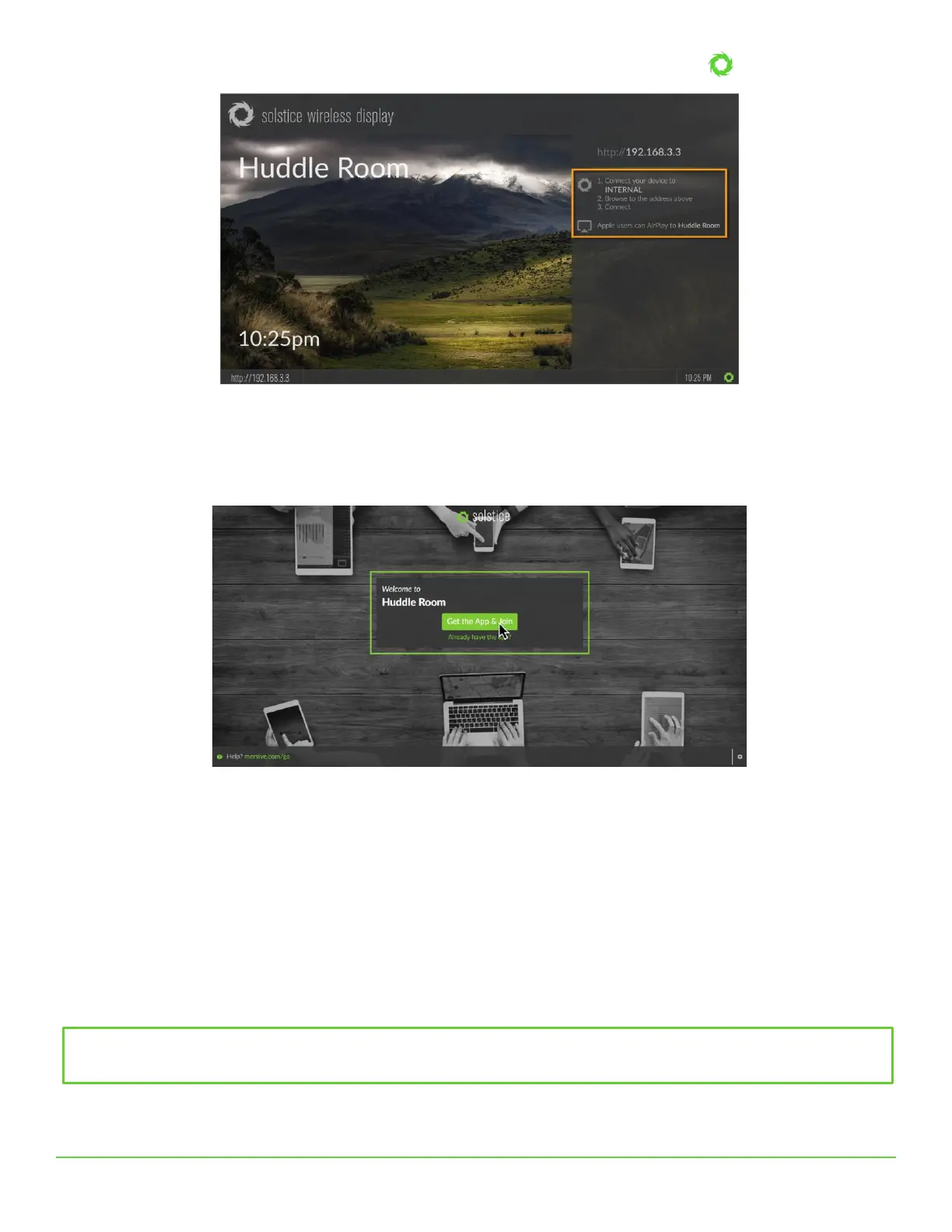
How to Connect to the Solstice Display
1. On the user device, connect to the “SolsticePod” network.
2. Enter the IP Address shown on the display into a browser on your device.
3. Click the Get the App & Join button and run the downloaded app.
Android or iOS devices will be directed to their app stores to download and install the app. However, this requires internet
access which is not available when connected to the Pod’s hotspot network. For this evaluation, these users will need to hop
over to a network that has access to the internet to install the Solstice mobile app. For full rollout and deployment, Pods
should be deployed on internet-enabled networks. See Scenarios 2 and 3 in this guide for more information.
Although Solstice users don’t need to download the user app before they walk into the room, we’ve also provided download
links here for convenience.
Windows: download from www.mersive.com/download or directly from the Pod
Mac: download from www.mersive.com/download or directly from the Pod
iOS: https://itunes.apple.com/us/app/solstice-client/id887643816?mt=8
Android: https://play.google.com/store/apps/details?id=com.mersive.solstice.client_v2
Keep in mind your Pod shipped with the most recent apps pre-installed. These will be installed for any user that downloads


 To Next Page
 Loading...