Pod Quickstart Guide
pg 5 | Pod Quickstart Guide | www.mersive.com | © Copyright 2019 Mersive
Try sharing more than one piece of content to the display using the Share panel. For example, it’s useful to share a couple
different application windows and some media files to see how things work. Try sharing your desktop by using the Desktop
sharing option. Next, open a PowerPoint or PDF document and share by using the App Window option. Now resize the
PowerPoint or PDF to half screen and note the difference between the desktop post and shared app window post on the
display. Lastly, share a dozen images saved locally on your device using the Media File sharing option.
You’ll notice that your posts carry an outline color that matches the user color assigned to you when you connected. If you
have a second device available, connect to the Pod from that device too and share something to see how different users are
represented on the shared display.
Step 5: Control your Posts
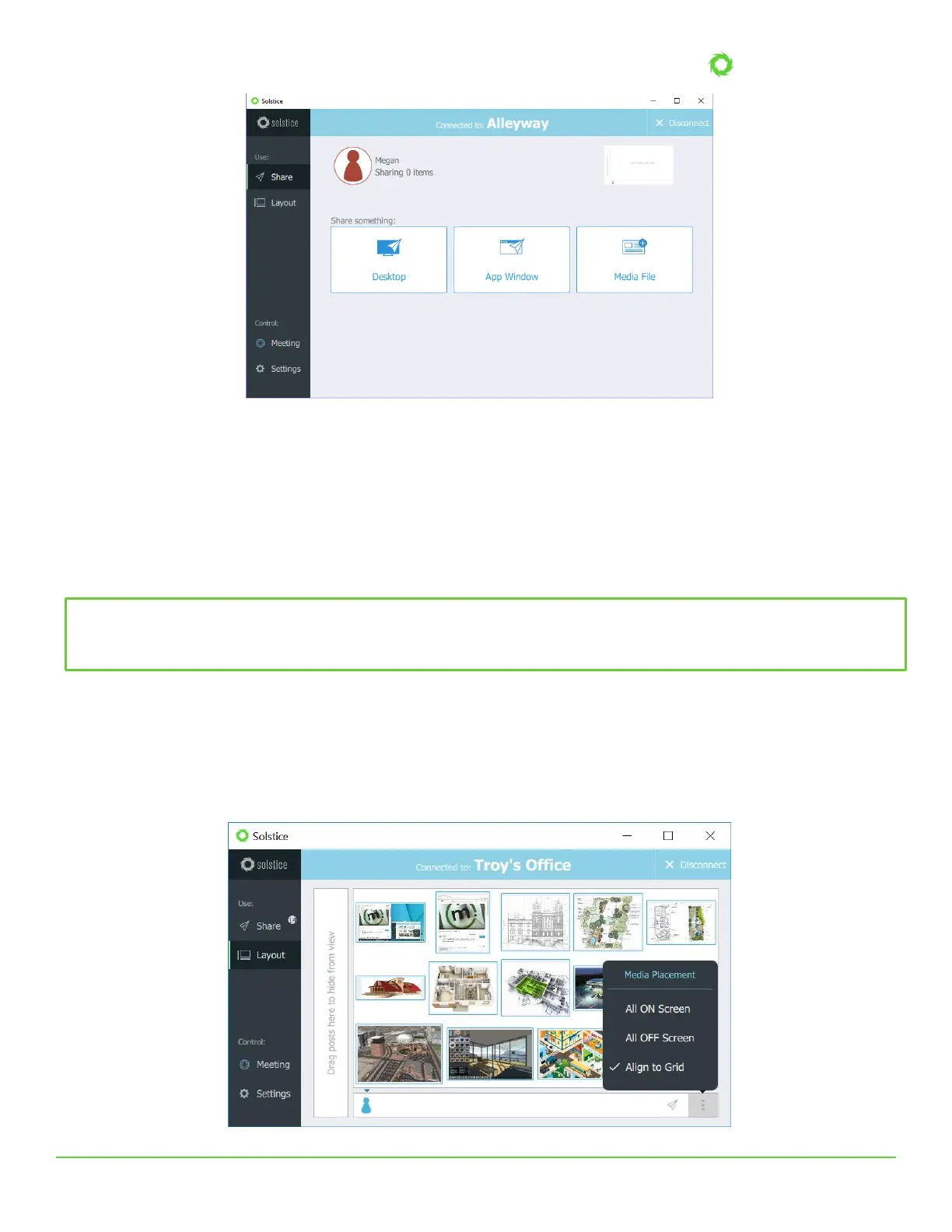
By selecting Layout in the grey sidebar menu, you can access Solstice’s intuitive What-You-See-Is-What-You-Get
(WYSIWYG) control interface. Here, every connected user can drag and drop content to reorganize it on the display, drag
posts off the screen into the “on-deck” area on the left-hand side to keep them available in the session but hide them from
view, delete posts, resize posts, and more. Posts are aligned to a grid by default, but you can deselect the Align to Grid
option (as seen in the screenshot below) to enable users to manage content in free-form mode.
Did you know? If you have an iPad, iPhone, or even an OSX device, you can Airplay the device screen directly to the Pod.
Swipe up from the bottom of the screen and click on “SolsticePod” in the AirPlay menu. You’ll see your device mirrored
live on the display.


 To Next Page
 Loading...