Pod Quickstart Guide
pg 8 | Pod Quickstart Guide | www.mersive.com | © Copyright 2019 Mersive
Step 3: Make Pods Available for Connection with Solstice Discovery
Solstice is designed to make it easy and intuitive for users to connect to a Solstice Pod. A user may always connect to a Pod
by typing the Pod’s IP address into a browser window or the Solstice app. However, Solstice “discovery” can streamline the
connection process by listing all Pods available for connection and enabling users to simply click a Pod’s name to connect.
There are three discovery methods that will enable this click-to-connect functionality in your Solstice deployment:
• Broadcast Discovery (default)
By default, each Pod will broadcast its name and IP address on the host network via UDP broadcast packets. While
this usually works great for smaller organizations with simple network configurations, UDP broadcast traffic is
often not allowed on larger, IT-managed networks. Broadcast discovery can be disabled in the Pod’s configuration
panel under the Network tab.
• Solstice Discovery Service (SDS) Application (recommended)
SDS is a light-weight Windows application created for networks that do not allow UDP broadcast packets. Basic
SDS use requires an administrator to associate each Pod with the SDS host’s IP address. This can be done in bulk
very quickly using the Solstice Dashboard (requires Enterprise Edition Pods). Users’ SDS host will be set
automatically when they download the Solstice app directly from a Pod, or users can enter the SDS host IP address
in the Settings menu of their Solstice apps (General tab > Solstice Discovery Service Address field).
• Universal SDS Override with DNS Entry
With this option, users will not be required to enter the SDS host IP address in order to leverage the non-broadcast
discovery that SDS provides. For this to work, an administrator must add an SDS DNS entry on the local network.
For more information on adding an SDS DNS entry, refer to the SDS Guide.
For more information on discovery options see the Network Deployment Guide, or jump straight to the SDS Guide.
Step 4: Understand and Validate Baseline Network Performance
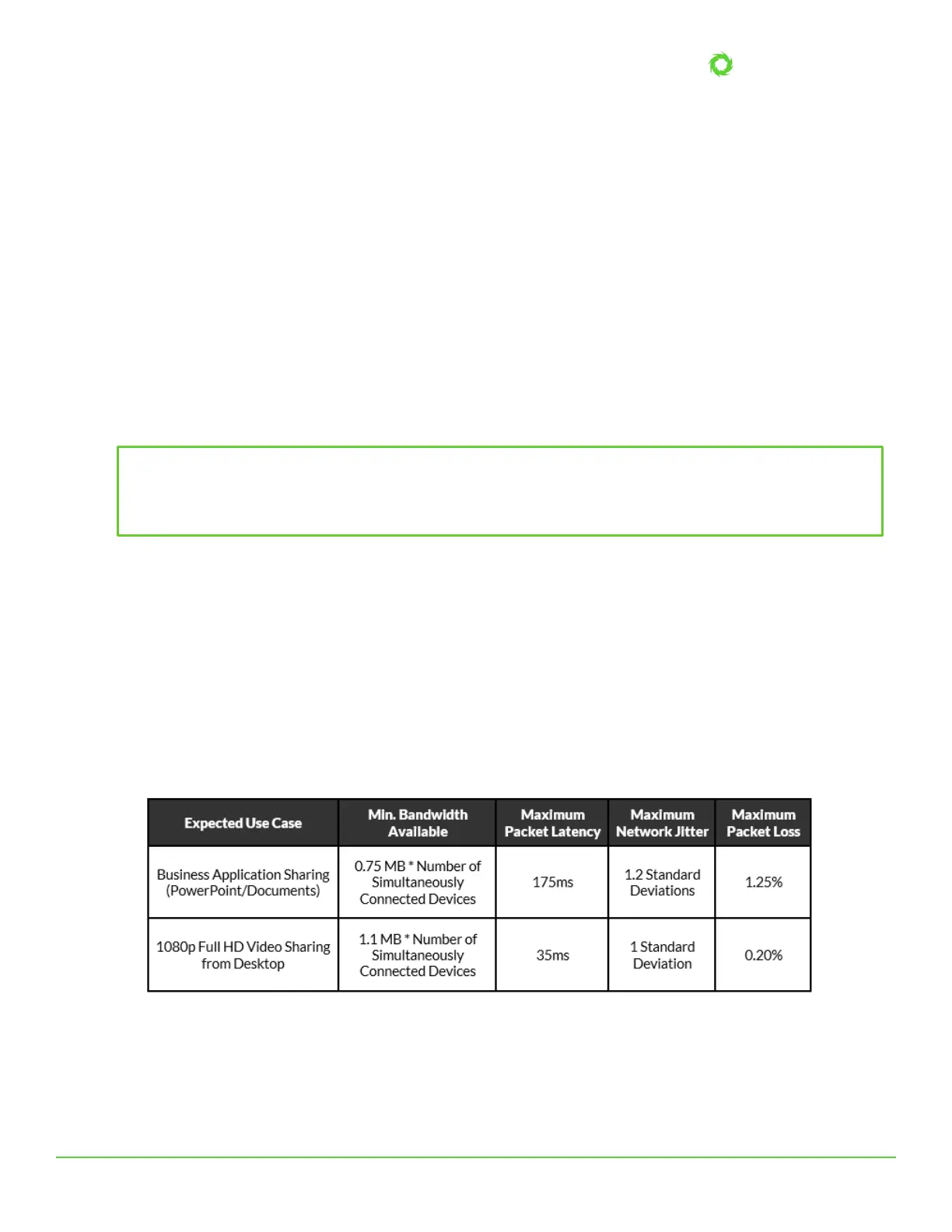
Solstice has been optimized for high performance across a broad range of network conditions, but administrators should be
aware that, as a live video streaming solution, Solstice’s performance is dependent on the host network. Therefore, the
network should meet the minimum requirements outlined below. These statistics are measured between a Solstice host and
end user device for two common use cases.
To quickly see how well Solstice performs on your network, connect to the Pod from a laptop and share the desktop. The
laptop you use should be representative of those that will be used in production. NOTE: Solstice requirements of user
devices are not intensive by modern standards. However, very old devices with underpowered graphics processing
capabilities may exhibit poor performance when live streaming to Solstice displays.
Notice desktop audio sharing is toggled on by default. Open a video file on the laptop, or navigate to YouTube and choose a


 To Next Page
 Loading...