The M2 Quick Start Guide
Program Playback/Edit:
In the M2 software, groups of measured constructed, and created
features can be saved to a part program file. Part program files, when
loaded, will prepare the M2 software to repeat a sequence of feature
measurement steps. Other software functions such as printing, and
exporting data can also be “played back” as part of a program.
IMPORTANT Optical Edge note: Programs created using the Optical
Edge probes will always default to the Manual Edge probe type for the
first feature in a program playback. This will help avoid unwanted
probe firing in the event edges must be traversed in order to position
your probe for the start of playback.
With the exception of the above rule, all feature program steps will be
played back according to the probe type used to measure the feature
initially. In addition, the operator can always over-ride the probe type
used in playback by selecting the desired probe from the probe menu.
“Using Program Playback Mode” Example
The M2 Software supports playing back part programs using the
following procedure:
■ Press the play button in the M2 System Menu to execute program
playback.
In the event the program is newly created (not from a previously saved
file) a default program file name will automatically be assigned and the
program file saved.
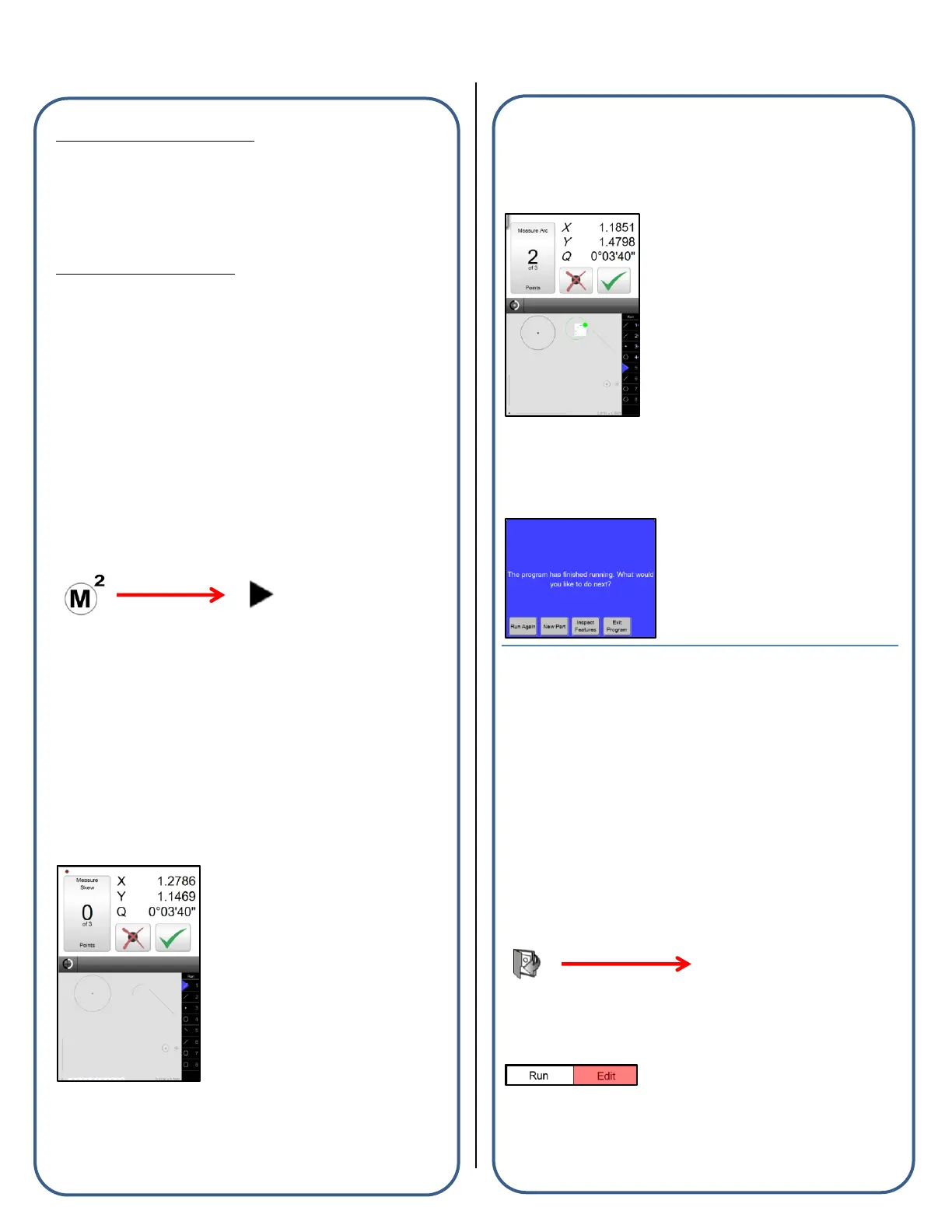
■ Probe the first feature in the playback sequence according to the
screen instruction, and the Blue Pin position in the “run” list. The
feature to be measured will be highlighted by a white region on grey
background, within the part view. The first two features in playback
should be probed using the red ball as the target location. Once a valid
coordinate system is established, subsequent features will require the
target ball be green in order for the currently selected probe to be
active. The target playback ball will be red until the stage coordinates
are close to the target ball at which point the ball turns green.
■ Continue measuring the programmed features of the part program,
where each target ball will turn green allowing for point entry by either
manual crosshair or an optical edge probe. The size of the active
target playback zone can be increased or decreased the Edge Zone
parameter in the “Programs” settings screen.
■ When the program playback is complete, the program options screen
will appear. The part program can then; be Replayed, cleared for New
Part creation, display measurement results, or edited(pending
adequate privileges).
■ For features with tolerances applied, the features name in the “run”
list, the part view graphic, and the corresponding detail view field, will
display in either red (fail) or white(pass).
■ Other software functions may also execute during playback. Data
exports, report printouts, and user messages are some examples.
“Using Program Edit Mode” Example
The M2 software supports editing of current, or previously saved part
programs using the following procedure:
■ To edit existing program files, open the program file prior to
proceeding.
■ Press the “program play” button from the M2 menu.
■ Press the “Edit” tab found at the top of the feature/program list.
■ The program steps will be listed within the “Edit” view.


 To Next Page
 Loading...