Resetting Consumables
Open Mi Home/Xiaomi Home app, select Mi Robot Vacuum-Mop and
then tap " " to open the Seings in the top right corner. Select
Consumables and choose the accessory you want to reset, follow the
instructions in the app to complete the reseing.
Restoring Factory Settings
If system restarting does not work, use a pin to press the reset buon
until you hear a voice say "Restoring factory seings". This will reset
the vacuum-mop to its original factory seings.
Battery
Note: If the vacuum-mop is not used for an extended period, turn it off and put it away. To prevent
damage from over-discharging, the vacuum-mop should be recharged at least once every three
months.
The vacuum-mop contains a high-performance lithium-ion baery
pack. Please ensure that it remains well-charged during daily use to
maintain optimal baery performance.
Updating the Firmware
You can update the firmware via the app. Before updating, make sure
the vacuum-mop is on the charging dock and has at least 15% baery
le.
The power indicator of the vacuum-mop will blink quickly between
white and orange alternately while its firmware is being updated.
Charging Dock
Clean the contacts of the charging dock with a so cloth.
System Restarting
If the vacuum-mop stops responding or cannot be turned off, press
and hold down the buon for 6 seconds to forcefully turn it off.
Then press and hold the buon for 3 seconds to turn the
vacuum-mop on.
Routine Maintenance
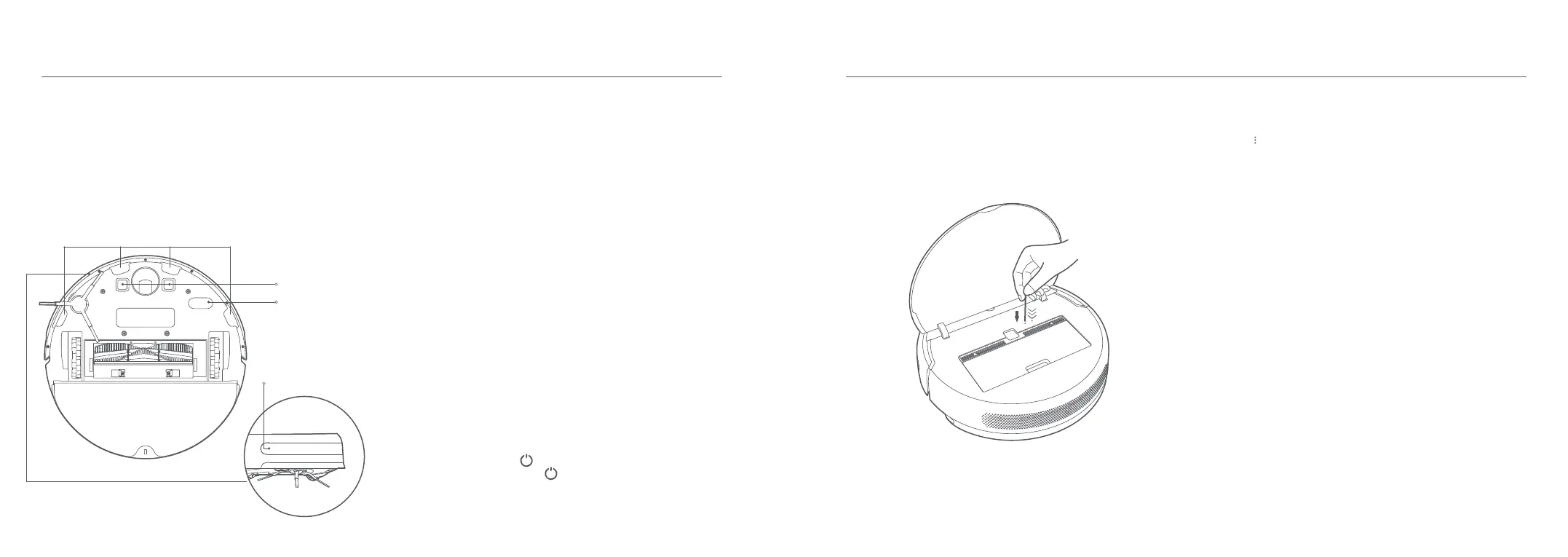
Cliff Sensor
Charging Contacts
Movement Sensor
Infrared Deceleration
Sensor
Vacuum-Mop Sensors
Use a so cloth to clean all sensors in the vacuum-mop, including:
· The four cliff sensors on the boom.
· The infrared deceleration sensor on the front.
· The charging contacts on the boom.
· The movement sensor on the boom.
15 16



 To Next Page