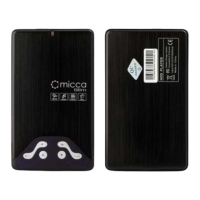
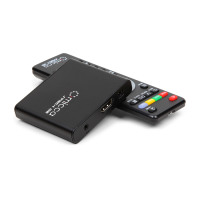
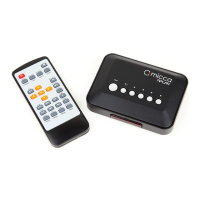
Please refer to the full User’s Manual for additional detailed instructions.
Connections and Settings
The Micca Slim can be connected to TVs and home theater receivers through its HDMI or AV
Out connector. HDMI output provides high quality 720p pure digital output and will give the best
results. Use the AV Out connection when HDMI is not available. The supplied 3.5mm-to-RCA
AV Out cable is specific to the Micca Slim for correct signal polarity.
Once the Micca Slim has been connected via HDMI or AV Out, connect the AC adapter to the
Micca Slim. Make sure that the TV has been set to the correct input settings.
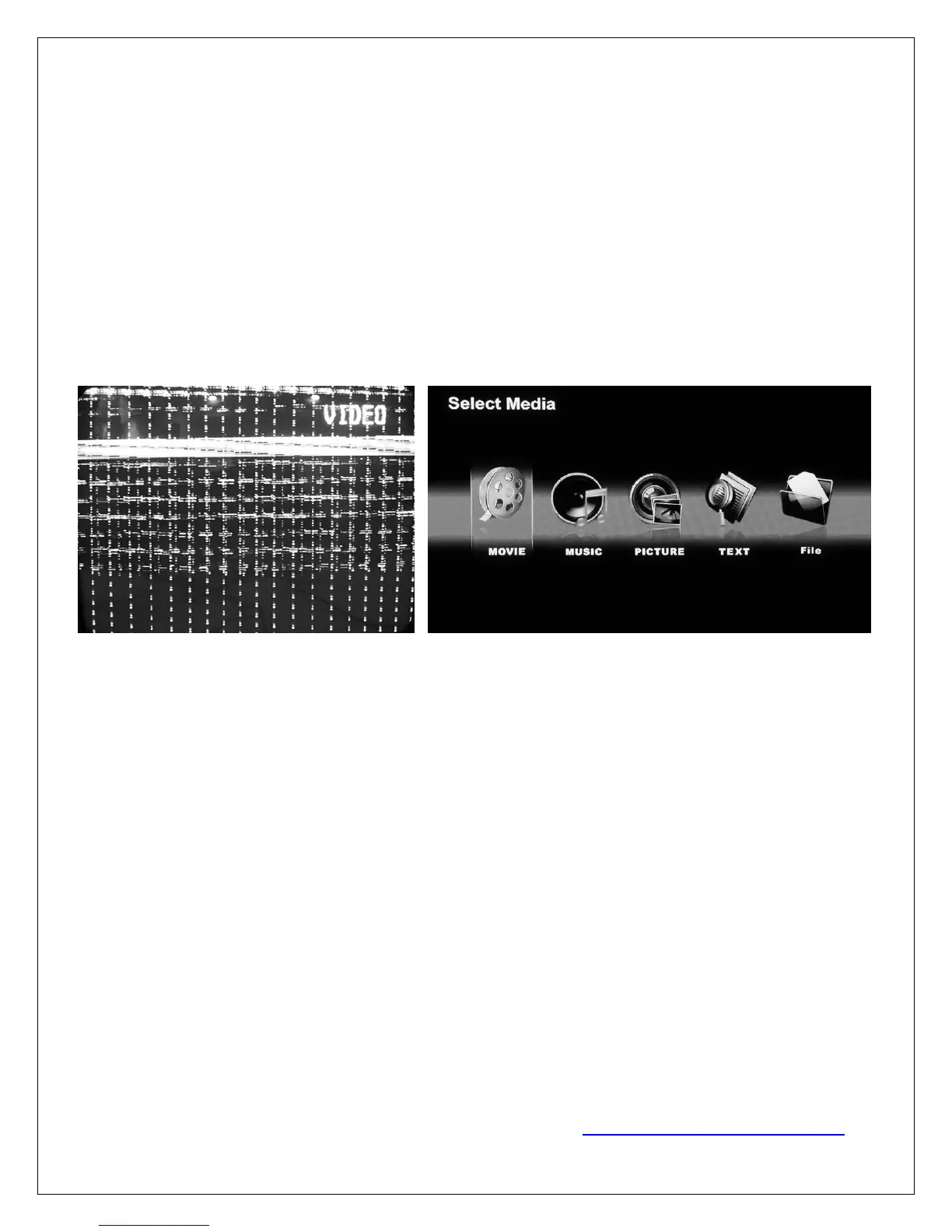
IMPORTANT – If the image on the TV looks discolored or distorted, this means the Micca
Slim has not been set to the correct TV System mode in the settings menu. For HDMI
output, set the TV System to HD Mode. For AV Out, set the TV System to NTSC Composite.
Wrong Output Mode Correct Output Mode
When the output mode is incorrect, the image might be too distorted to see the Settings menu.
In this case, press the <Setup> button on the remote, then press the <TV Mode> button
repeatedly to cycle the Micca Slim through its output modes until the correct mode is selected.
Playing Media Files
The Home screen on the Micca Slim will show a row of icons representing storage devices that
has been detected, including the internal HDD and any external USB flash drives or SD flash
cards. Copy your favorite video, music, or photo files to these storage devices and select them
for playback on the Micca Slim. The Micca Slim will play all files in a folder in alphabetical order
continuously until stopped or turned off. Multiple parts of the same movie can be played this way.
Turn off the Micca Slim while it is playing a movie and it will resume playing where it left off once
turned back on.
Media File Compatibility
The Micca Slim is able to play a wide range of media file formats. However, there are a few file
formats that it cannot play, such as MKV files or media files encoded in H.264/MPEG4-AVC
codec. However, it is easy to recode these files for playback on the Micca Slim with free
software tools. For more information regarding file compatibility and how to recode video files,
please download the Micca Slim Video Recode Tutorial from http://download.miccastore.com
.


 To Previous Page
 Loading...