Copyright © 2019 Micca All rights reserved. v190826
VII. Viewing Photos
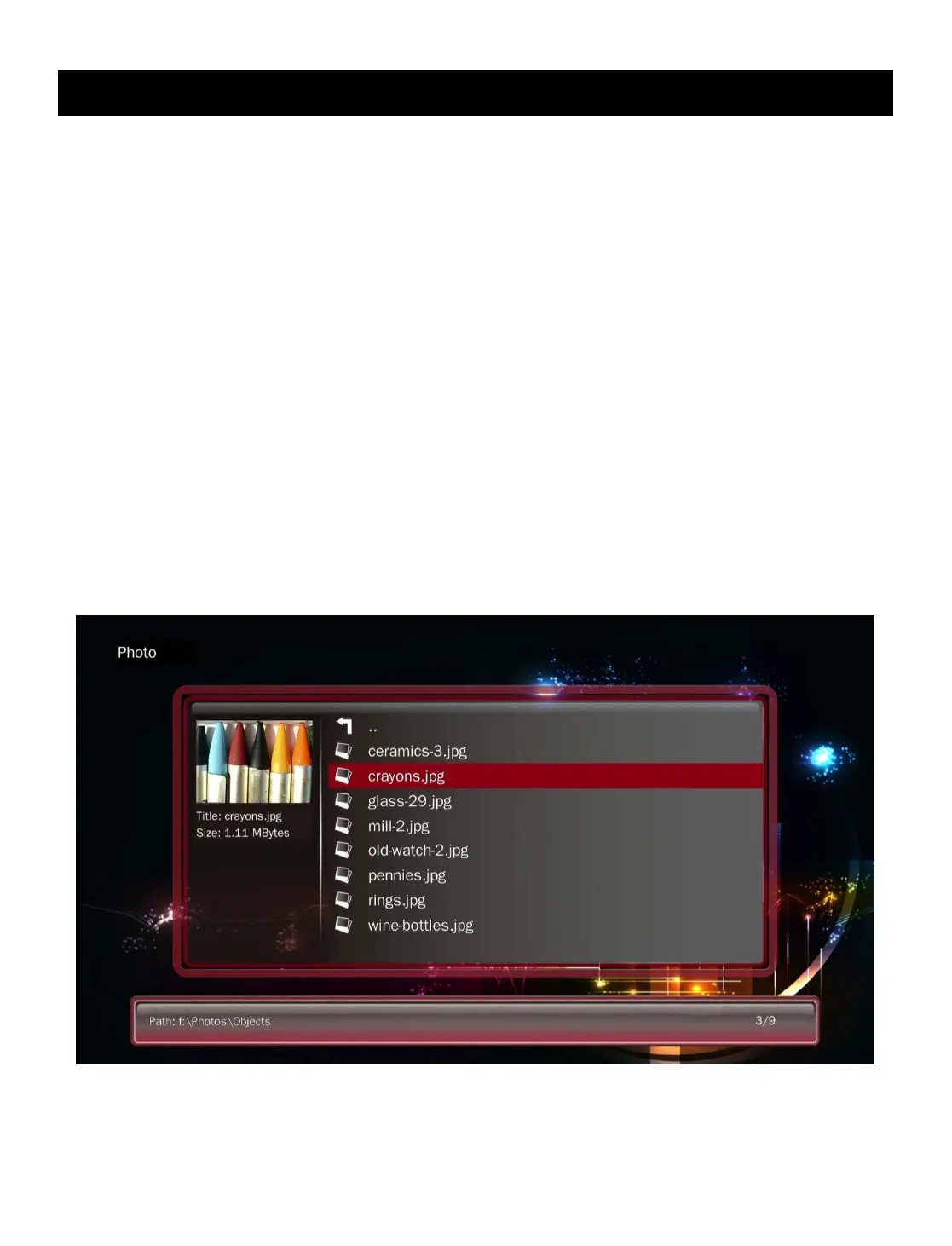
To browse and view photos:
1. From the home menu, select the Photo icon and press <OK> on the remote to
begin browsing for photos.
2. Select which storage device to browse for photos in: USB Drive, Memory Card,
and Optical Drive. Highlight the desired device and press <OK>.
3. Select which partition of the drive to browse for photos in. Most drives have only
one partition. Highlight the appropriate partition and press <OK>.
4. All folders and compatible photos found will be displayed. If no folders or
compatible photos are found, a message will pop up indicating “No Compatible
Files Found!”
5. To browse thin a folder, highlight the folder and press <OK>. To back out of a
folder, press the <RETURN> on the remote.
6. To view a photo full screen, highlight the file and press <OK>.


 To Next Page