While Edison robots are designed to be user-friendly and intuitive straight out of the
box, occasional issues, common to any computing device, may arise. Explore these
troubleshooting tips to swiftly resolve any queries you might encounter.
Checking that Edison’s USB cable is pushed all the way into your device’s USB-A
port. Then, check that the browser you are using to program Edison is Use Google
Chrome, Microsoft Edge or Opera.
If this error is visible ‘There seems to be a network issue accessing the compiler’
message after pressing the ‘Program’ button in the app, or if the program failed to
download successfully, you will need to check the app’s connectivity status.
The app need to access the compiler. The compiler is what converts the programs
you see on the screen into a format that can be sent to the Edison robot inside the
app.
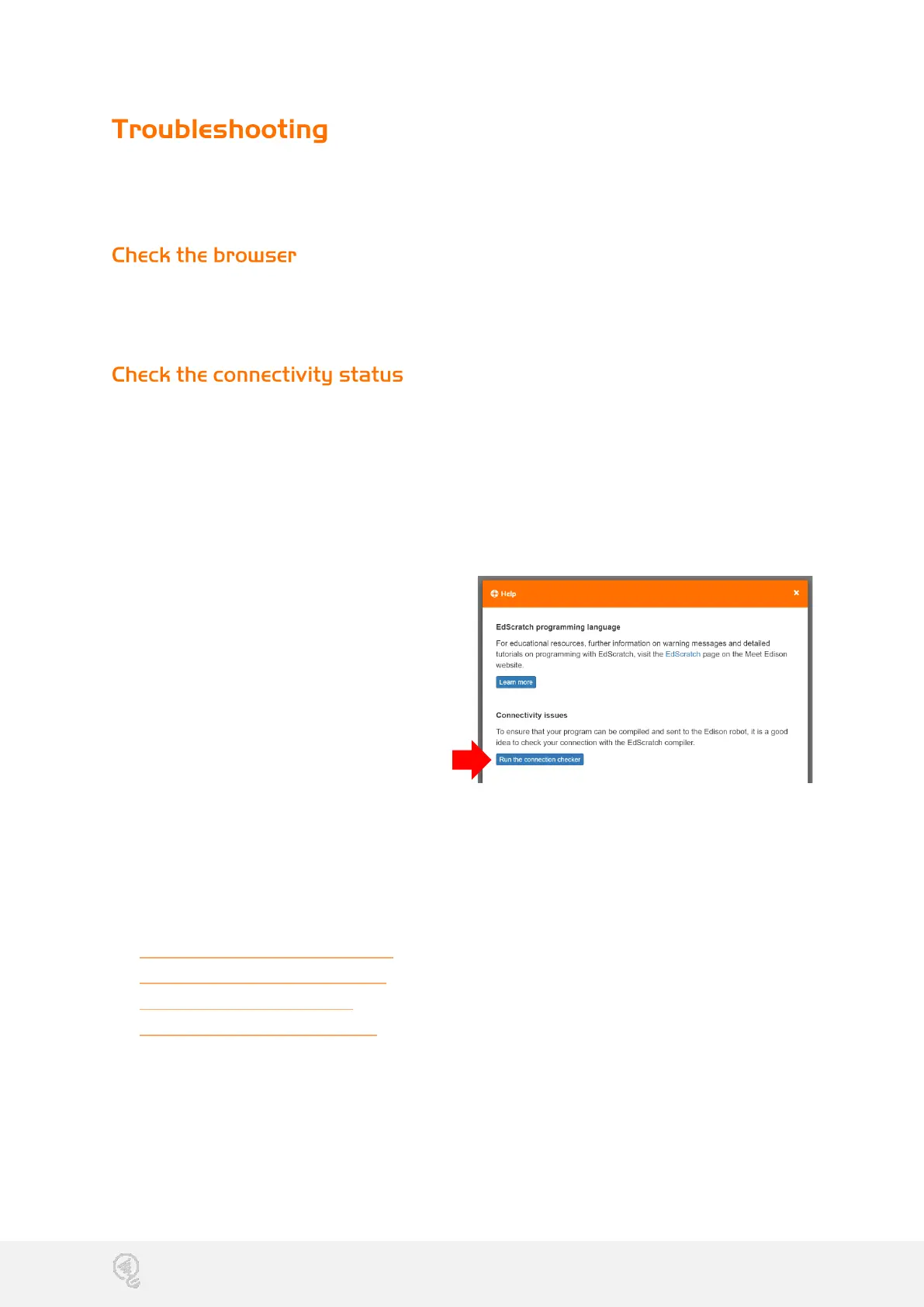
To check your connection and thus
ensuring that the app can access the
compiler, open ‘Menu’ in the upper left-
hand corner and select ‘Help’. This will
open a pop-up which includes the
option to ‘Run the connection checker’.
Click this button to check your
connection.
If the connection test result shows ‘NO
SERVER FOUND’ then you may be behind a firewall, which is blocking access to the
compiler.
To fix the problem, contact your network administrator and ask that them to unblock
ports 80, 8080, 443 and 8443 and white list these addresses:
• https://www.edscratchapp.com
• https://www.edblocksapp.com
• https://www.edpyapp.com
• https://api.edisonrobotics.net
• 52.8.213.196
• 13.210.175.93
• 52.52.42.133


 To Next Page
 Loading...