─
11
─
Change ap direction
Ind. ap
Control
Back
Select ap
Upper/lower ap
Back
Select the ap to change.
Left/right ap
3D AUTO
2
1
3
When one or more FDKs with a left/right ap are connected, the
Select ap screen is displayed. Select the desired ap direction.
1
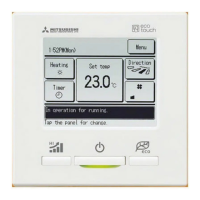
To change the up/down ap direction, tap the
Upper/lower ap
button. The Change ap direction screen
for the up/down ap is displayed. (
☞
2)
2
To change the left/right ap direction, tap the
Left/right ap
button. The Change ap direction screen for the left/right ap is
displayed. (
☞
4)
3
The 3D auto ow operation automatically controls the fan speed
and ap direction to efciently condition the air of the entire room.
To switch to the 3D auto ow operation, tap
3D AUTO to
enable the operation.
To disable the 3D auto ow operation, tap the
3D AUTO again.
The ap direction returns to the direction that was set before the
3D auto ow operation was enabled. The 3D auto ow operation
will also be disabled when you change the up/down or left/right
ap direction during the 3D auto ow operation.
4
Tap the desired ap direction. After selecting the ap direction, the
display returns to the Select ap screen. (
☞
1)
5
When the 3D auto ow operation is enabled, “3D AUTO” is displayed
on the
Change ap direction button, as shown on the left.
R/C Room
Outdoor
3



 To Next Page
 Loading...