Operating the MxThinClient
1.
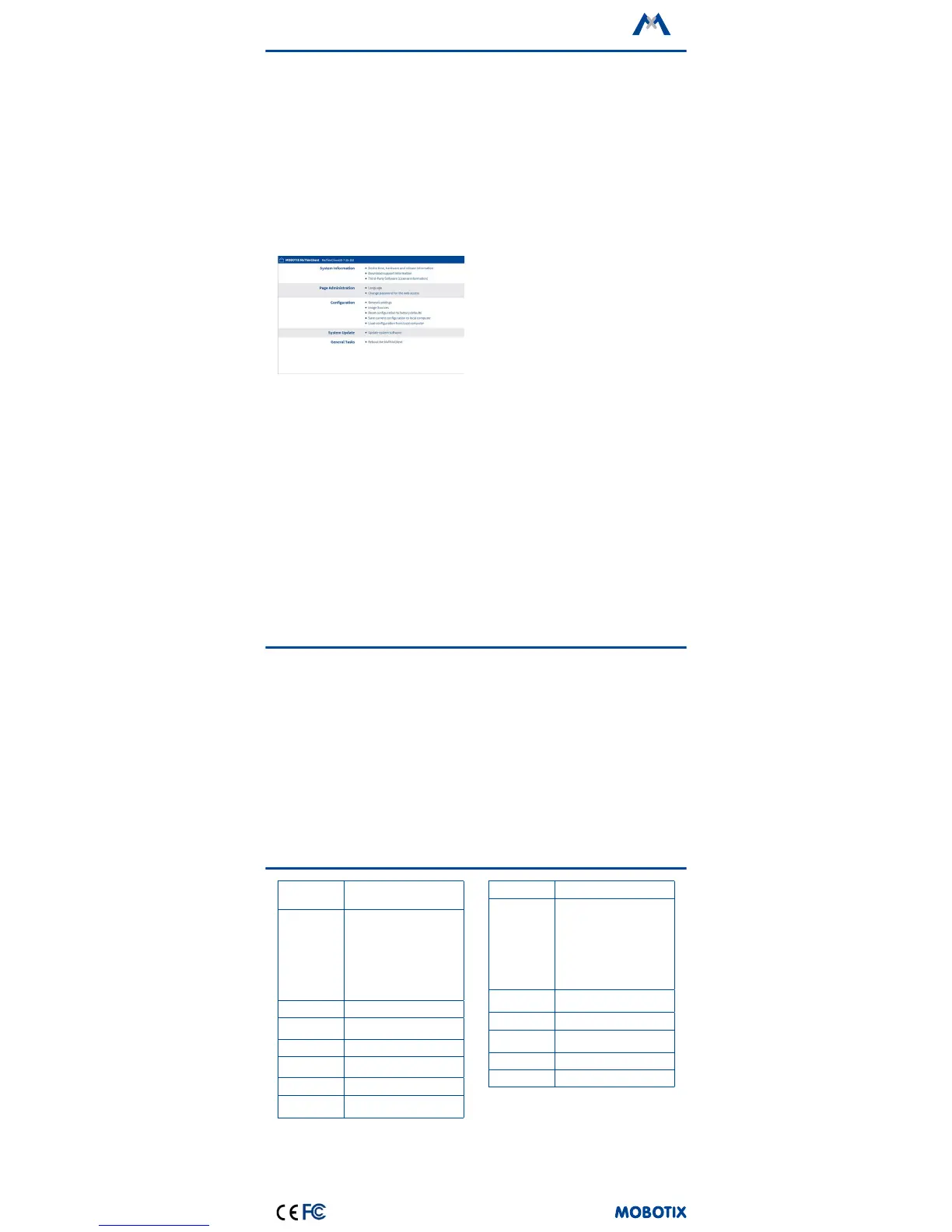
Open the MxThinClient User Interface in a Browser
Enter the IP address of the MxThinClient:
http://<MxThinClient IP address>
By default, the MxThinClient has been set to run as
a DHCP client with an additional static IP address
in the 10.x range (network mask 255.0.0.0) printed
on the housing of the device. If you are running the
MxThinClient in a network with a DHCP server (e.g.,
DSL router), you can look up the IP address in the
list of devices of the DHCP server. When using a DSL
router with integrated DHCP/DNS server, you can also
use the host name of the device MxThinClient<10x
factory IP address>
in the browser address bar.
Example:
http://MxThinClient10-7-35-193
2. Set the Language and Change the Password
The factory default language is English. If required,
click on Page Administration > Language and select
a dierent language.
For security reasons, you should change the factory
default password. Click on Page Administration >
Change password for the web access and set a new
password.
3. Set Up the Network
If you intend to use the pop-up feature to show image
sources via MxMessageSystem described above, you
need to adjust the settings in the following dialogs of
the Conguration section:
• Network settings: NTP
When using messages of the MxMessageSystem,
the time of the MxThinClient must run in sync with
the cameras and door stations that are sending
the messages. In the NTP section, enable the time
synchronization and enter the same time server
(IP address or name) as on the cameras and door
stations. Note that you can also use a camera or a
door station as a time server.
• Network settings: MxMessageSystem – Distri-
bution of Message over the Network
Activate this section if you want to receive mes-
sages from a camera or door station via the
MxMessageSystem.
Important: Make sure that these entries are identical
to the entries in the MxMessageSystem congura-
tion of all cameras or door stations that are sending
messages.
4.
Congure the Image Sources (Cameras/Still Images)
Open the Conguration > Image Sources dialog to
dene all image sources (live video streams and/or
images) you want to display as well as the correspond-
ing display duration..
Notes:
• To display still images, set the Codec dropdown to
Image and then specify the p[s] or http[s] address
to download the image to show. These images are
currently not stored in the MxThinClient, but will be
loaded every time they are displayed.
• By default, all dened image sources are displayed
using the global sequencer display duration. To
dene an individual display duration for an image
source, activate the Use Individual Display Dura-
tion option.
• If you enter the name of a message in the Message
Name eld, the device will automatically display this
image source if it receives a message with this name.
Safety Warnings
•
This product must not be used in explosion-hazard-
ous locations.
• The MxThinClient is intended for indoor use only.
Make sure to respect the operating temperature
range of 0 to +40 °C for the MxThinClient.
• Network security: MOBOTIX products include all of
the necessary conguration options for operation in
Ethernet networks in compliance with data protec-
tion laws. The operator is responsible for the data
protection concept across the entire system. The
basic settings required to prevent misuse can be con-
gured in the soware and are password-protected.
This prevents unauthorized parties from accessing
these settings.
•
Make sure that you adhere to all relevant laws, regula-
tions and that you fulll all certication requirements
for the intended use.
Technical Specications
Connections
Ethernet 100Base-T (RJ45); HDMI type
D (Micro HDMI)
Certications
EN55032:2012; EN55022:2010;
EN55024:2010; EN50121-4:2015;
EN61000-6-1:2007;
EN61000-6-2:2005;
EN61000-6-3:2007 + A1:2011;
EN61000-6-4:2007 + A1:2011;
AS/NZS CISPR22:2009 + A1:2010;
CFR47 FCC part15B
Video Codec
MxPEG/M-JPEG
Formats (codecs)
for Still Images
PNG, JPG, up to 10 MB
Camera Soware
Release 4.4.x/5.0.x or higher
Power Consump
-
tion
2 W
Power Supply PoE IEEE 802.3af
Protocols
IPv4, HTTP, HTTPS, NTP, FTP, FTPS,
HDMI 1.4
Max. Image Size Full HD
Output Image
Sizes
- Image size of image source
unaltered (max. Full HD)
-
VGA (640x480), SVGA (800x600),
XGA (1024x768), HD (1280x720),
Mega (1280x960), Full-HD (1920x720)
- When showing dual images,
the x value of the image sizes from
above is used
Operating Con
-
ditions
Only for indoor applications,
0 to +40 °C
Protection Class
IP20
Dimensions
(height x width x depth): 25 x
100 x 80 mm/1 x 3.94 x 3.15 in
Materials Housing: Polycarbonate, black
Weight
Approx. 125 g


 To Previous Page
 Loading...