1 . How to use Pen+
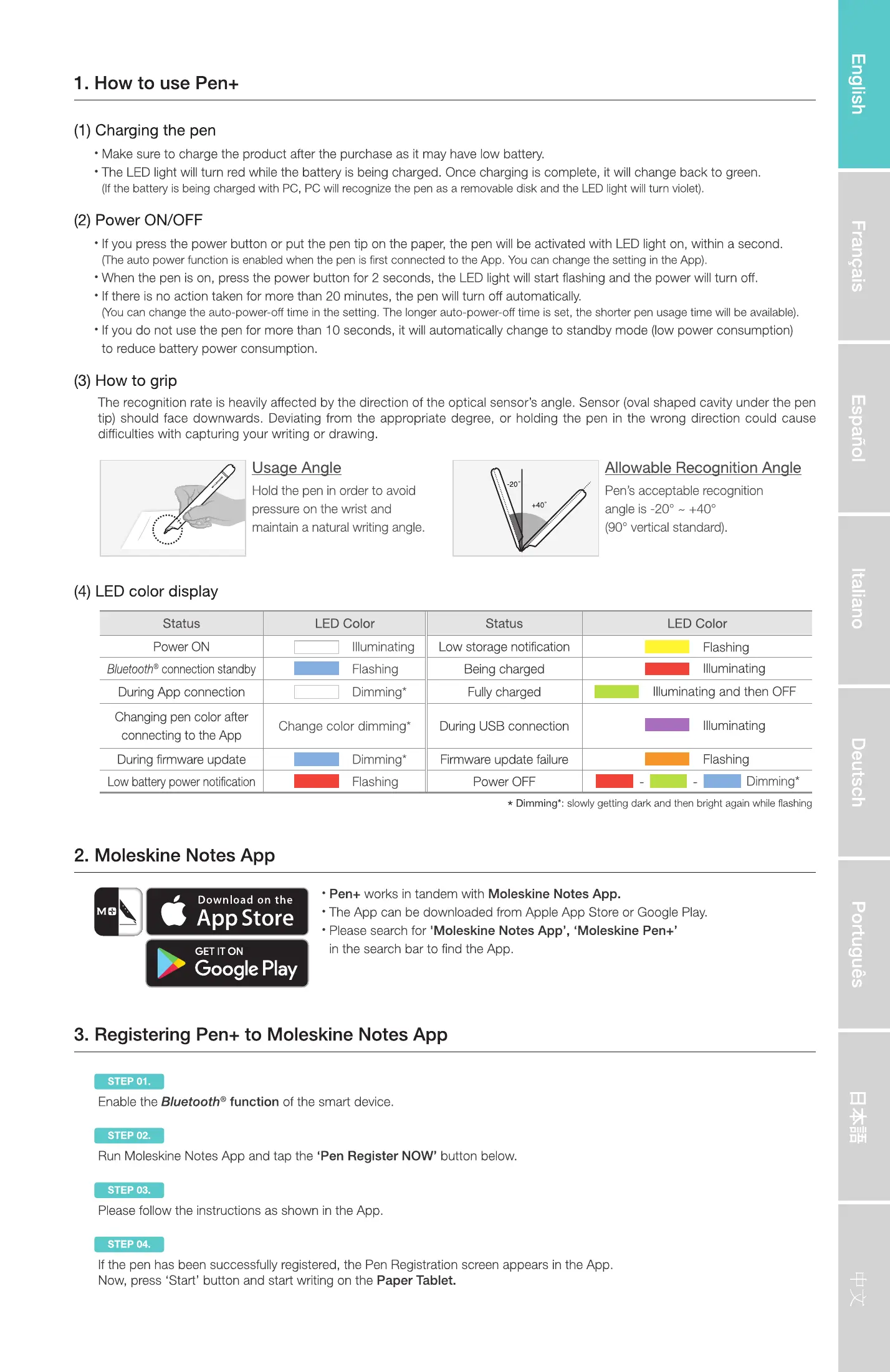
(1) Charging the pen
• Make sure to charge the product after the purchase as it may have low battery.
•The LED light will tum red while the battery is being charged. Once charging is complete, it will change back to green.
(If the battery is being charged with PC, PC recognize the pen as a removable disk and the LED light will turn vwet).
(2) Power ON/OFF
• If press tha power button or put the pen tip on the paper, the pen will be activated with LED light on, within a second.
(The auto power finction is enabled when the pen is first cnnnected to the App. You can change the setting in the Agp).
•When the pen is on, press the power button for 2 seconds, the LED light will start flashing and the power will turn off.
• Itthere is no action taken for more than 20 minutes, the pen will turn off automaticalty_
(You can change the auto-power-off time in the setting, The longer auto-power-off time is set, the shorter pen usage tima be available).
• Ifyou do not use the pen for more than 10 seconds, itwill automatically change to standby mode (law power consumption)
to reduce battery power consumption.
(3) How to grip
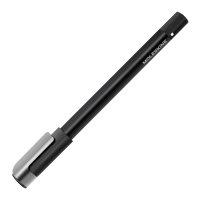
The recognition rate is heavily affected by the direction of the optical sensor's angle, Sensor (oval shaped cavity under the pen
tip) should face downwards. Deviating from the appropriate degree, or holding the pen in the wrong direction could cause
difficulties with capturing your writing or drawing.
Usage Angle
Hold the pen in order to avoid
pressure on the vmst and
maintain a natural writing angle.
(4) LED color display
Status
Power ON
Eluetooth0connectionstandby
During App connection
Changing pen color after
connecting to the App
Durirg firmware update
Low battery power notification
LED color
Illuminating
Flashing
Dimming•
Change color dimming'
Dimming,
Flashing
Status
Low storage notification
Being charged
Fullycharged
During IJSBconnectim
Firmwareupdate failure
Power OFF
Allowable Recognition Angle
PenS acceptable recognition
angle is -20s - +400
(goo vertical standard).
LED color
Flashing
Illuminating
Illuminating and then OFF
Illuminating
Flashing
2. Moleskine Notes App
Download on t he
App Store
GET IT ON
Google Play
Dimming•: sky.%tygetting dark and then bright again while flasüg
• Pen+ works in tandem with Moleskine Notes App.
• The App can be downloaded from Apple App Store or Google Play.
•Please sear leskine Notes App', 'Moleskine Pen*'
in the searc d the App.
3. Registering Pen+ to Moleskine Notes App
Enable the Bluetooth' function of the smart device.
STEP 02
Run Moleskine Notes App and tap the 'Pen Register NOW' button below.
STEP 03,
Pleasefollow the instructions as shown in the App.
STEP
If the pen has been successfully registered, the pen Registration screen appears in the App.
Now, press 'Start' button and start writing on the paper Tablet.
Moleskine Pen+_User Quick Guide_120x185.indd 3 16/12/16
11


 To Next Page
 Loading...