P01 P02
Install the SnapTo tabs
Package Contents
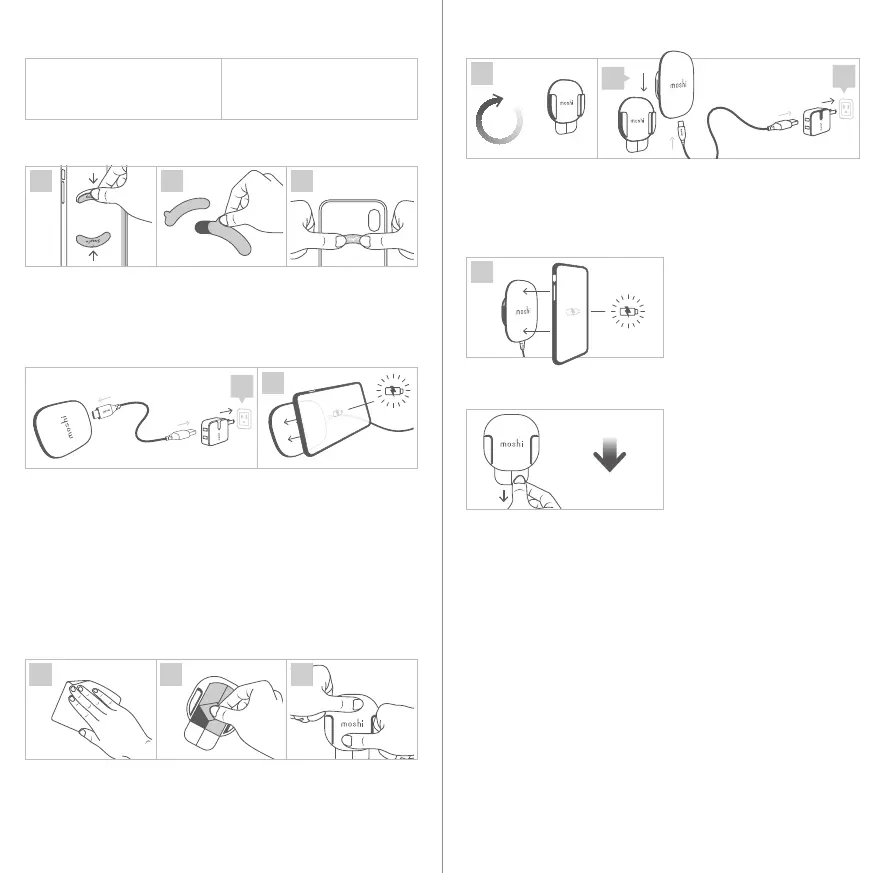
1. Remove the plastic placeholder tabs from your Moshi SnapTo case.
2. Peel o the adhesive liner from the SnapTo metal tab.
3. Place the tab into your case and press rmly for 30 seconds.
EN
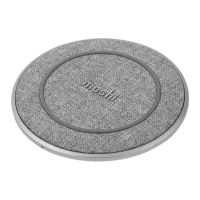
• 1 x SnapTo Wireless Charger
• 1 x USB-C to USB-A Cable
• 2 x SnapTo Tabs
• 1 x wall mount kit
• 1 x User Guide
30 seconds
1 2 3
How to charge wirelessly with SnapTo Wireless Charger
1. Plug the included USB-C to USB-A cable into the SnapTo Wireless
Charger, then connect it to any USB Type-A wall charger* (not
included). A USB-C to USB-C Cable and charger (such as Moshi’s
Rewind C) also works.
2. Charging automatically begins after attaching your phone
(installed in a Moshi SnapTo case) to the SnapTo Wireless Charger.
* Note: For optimal performance, use a high-output wall charger over
5 W (12 W recommended) for better charging eciency.
How to install the wall mount kit
1. Make sure the mounting surface is clean and dry.
2. Peel o the adhesive liner from the wall mount kit.
3. Firmly press the wall mount kit onto a clean and dry mounting
surface for 30 seconds.
How to remove the wall mount kit
Pull the white adhesive strip down
(not towards you) and pull slowly
to release the wall mount kit. The
adhesive strip may stretch up to
12 in (30 cm) before the mount
releases from the wall.
Foreign Object Detection Troubleshooting
1. Remove any metal objects like coins or keys between your device
and SnapTo Wireless Charger.
2. Unplug the power adapter from SnapTo Wireless Charger then
plug it in again.
3. If the problem still exists, please contact support@moshi.com.
LED behavior
- O: Not charging
- Breathing light: Charging
- Steady on: Fully charged
- Flashing: Foreign Object Detection error
4. Wait 24 hours for the adhesive to fully set.
5. Plug the supplied USB-C to USB-A cable into SnapTo Wireless
Charger, then connect to any USB Type-A wall charger (not
included). A USB-C to USB-C Cable and charger also works.
6. Insert the SnapTo Wireless Charger into the wall mount kit.
7. Charging automatically begins
after attaching your phone
(installed in a Moshi SnapTo
case) to the SnapTo Wireless
Charger.
1 2 3
30 seconds
1 2 3
pull slowly
stretch up to
12 in (30 cm)
7
24 hours
6
4
5
1
2



 To Next Page
 Loading...