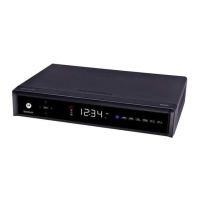
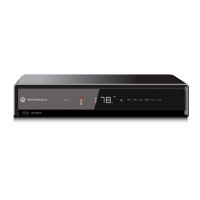
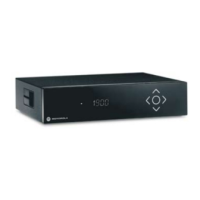
4 CONNECTING YOUR DCX SET-TOP
15
Connecting HDTV — Separate Video/Audio Connections
Cable In
Connect an RF coaxial cable to the cable wall outlet and the
CABLE IN connector on the
DCX set-top.
DVI
If your TV has a DVI input, use the DVI connection for your video, connect a HDMI-to-DVI
adapter or cable to the HDMI out connector on the DCX set-top and the
DVI-HDTV
connector on your TV.
Note: A DVI connection supports only the video connection between the DCX set-top
and the HDTV.
To connect your audio connections with your TV speakers, go to
Audio section below.
To connect your audio connections for an A/V receiver, go to
Connecting Your DCX Set-top
to an A/V Receiver — Audio.
Component Video (YPbPr)
Connect the component video cables to the Y, Pb, and Pr connectors on your HDTV and
DCX set-top.
Note: This connection supports only the high-definition video connection between the
DCX set-top and the HDTV.
Note: Be sure to match up each signal to the same connection on the TV, otherwise the
colors will not appear correctly on your TV.
To connect your audio connections with your TV speakers, go to
Audio section below.
To connect your audio connections for an A/V receiver, go to
Connecting Your DCX Set-top
to an A/V Receiver — Audio.
Audio
If your TV does not have digital audio inputs, connect the stereo audio cable to the
AUDIO L/R connectors on the DCX3400 set-top and the AUDIO L/R connectors on the
HDTV.
If your TV supports a digital audio inputs, use the digital audio
OPTICAL S/PDIF or
COAXIAL S/PDIF outputs instead of the AUDIO L/R outputs. S/PDIF offers better audio
quality, including support for Dolby
®
Digital audio.
For information on configuring your DCX set-top settings, go to
Configuring the Audio,
Video, and Closed Caption Settings.



 To Next Page
 Loading...