Getting started - Connecting Devices
3.2
User Account and Camera Setup on Android™ Devices
What you need
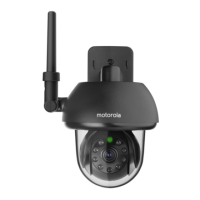
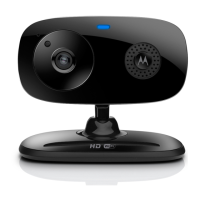
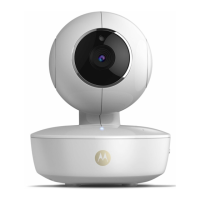
• FOCUS72 Camera
• Power adapter for the Camera
• Device with Android
™
system version 4.2 and above
3.2.1 Power ON and Connect the Camera
Connect the FOCUS72 power adapter to a suitable electrical outlet and insert
the power adapter plug into the power socket. (see section 3.1.1 Setting Up the
Camera, Step 2)
• The Camera’s green LED blinks after the Camera has nished booting.
3.2.2 Download the Hubble App
• Go to Google Play™ Store to search for “Hubble for Motorola Monitors”
application.
• Download “Hubble for Motorola Monitors” App from Google Play™ Store
and
install it on your Android™ device
3.2.3 Run Hubble for Motorola Monitors App on Android™ Devices
• Ensure that your Android™ device is connected to your Wi-Fi
®
router.
• Run “Hubble for Motorola Monitors” App, enter your account information,
read
through the Terms of Service, then select “I agree to the Terms of Use”
before
you tap Create. (Picture A1)
Note
If you already have a Hubble App account, please select Already have an
Account? to go to the next step.
A1


 To Next Page
 Loading...