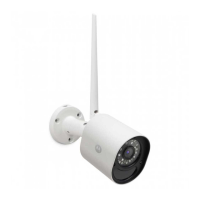
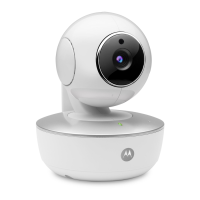
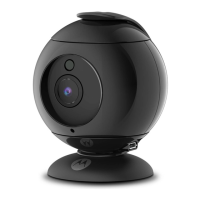
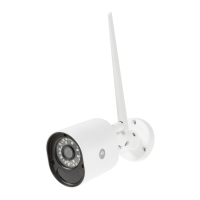
Camera 25
ENGLISH
Android™
D. Connecting the Camera Unit's Power Supply.
4.2 Camera Functions:
Working with devices for Android™
• Run the Hubble for Motorola Monitors application on your Android™ device.
• The Camera view appears on the screen.
4.2.1 Add more cameras
• On Camera view, tap on Hubble logo to go to Add Camera page. (Picture A13)
• Tap on Add Camera to add one more camera follow steps of Android™
device setup Section 3.2.4. (Picture A14)
• Once the Camera has been added, the Camera view will be automatically
displayed.
• Connect the camera's round plug to the Y-shaped Power/LAN
cable connector.
• Insert the power adapter plug into the Power Socket and connect
other end of the power adapter to a suitable mains power socket.
(LAN socket provides an option for you to connect via LAN cable if
it is necessary)
• The LED indicator will light up.
Power/LAN cable connector
Camera Round Plug
LAN Socket for LAN cable
connection (use if necessary)
Power Socket for connecting to
power adapter


 To Next Page
 Loading...