14
Getting started - Connecting Devices
3.3 User Account and Camera Setup on iPhone
®
/iPad
®
What you need
• Wi-Fi
®
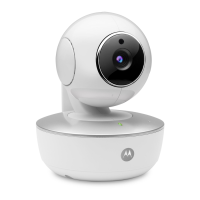
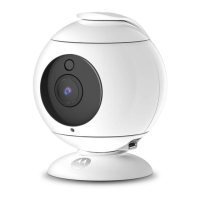
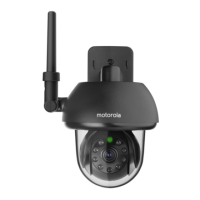
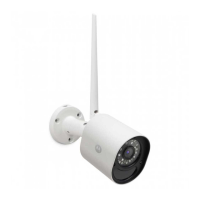
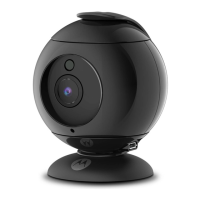
Camera Unit
• Power adapter for the Camera
• iPhone
®
/iPad
®
with iOS version 9.0 and above
3.3.1 Power ON and Connect the Camera
• Connect the power adapter to an electrical outlet and insert the plug into
the micro USB socket at the back of the Camera.
• The Camera’s Blue LED is lit after the Camera has finished booting.
3.3.2 Download Hubble for Motorola Monitors App
• Go to App Store to search for “Hubble for Motorola Monitors”.
• Download “Hubble for Motorola Monitors” App and install it on your
iPhone
®
/iPad
®
.
3.3.3 Run Hubble for Motorola Monitors App on iPhone
®
/iPad
®
• Ensure that your iPhone
®
/iPad
®
is connected to your Wi-Fi
®
Router.
• Run the “Hubble for Motorola Monitors” App, enter your account
information, read through the Terms of Service, and then select “By signing
up you agree to our Terms & Conditions” before you tap SIGNUP. (Picture i1)


 To Next Page
 Loading...