28 Wi-Fi Internet Viewing
5.4 User Account and Camera Setup:
Working with iPhone
®
/iPad
®
What you need
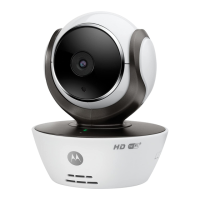
• MBP853CONNECT camera
• The power adapter for the Camera
• iPhone
®
/ iPad
®
with iOS 7.0 version or up
5.4.1 Power ON and Connect the Camera
• Connect the power adapter to an mains power socket and insert the plug
into the micro USB socket at the back of the Camera.
• Make sure that the ON/OFF switch is in the ON position.
• The Camera's red LED flashes after the Camera has finished booting. When
you hear two beeps, this means the Camera is ready for setup.
5.4.2 Download the Hubble App
• Go to the App Store to search for “Hubble for Motorola Monitors”.
• Download the Hubble for Motorola Monitors App and install it on your
iPhone
®
/iPad
®
.



 To Next Page
 Loading...