52 Wi-Fi Internet Viewing
5.7 Camera Functions:
Working with PC/Notebook
• Go to https://app.hubbleconnected.com/#login
• Enter your User Name and Password and then click Login if you have already
created an account.
• Click on the Camera list paired in your account via Android™ device or
iPhone
®
/iPad
®
, and the Camera view will appear on screen. You can easily
stay connected with your favorite people, places and pets with live video
streaming.
• On the website, you can change the Settings by following the Menu instructions.
5.8 Procedure for resetting the Camera
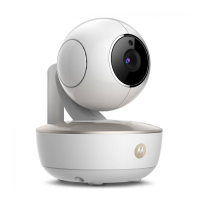
Note: If your Camera is moved from one router (e.g. home) to another router
(e.g. office) or you have Camera setup issues, then the Camera must be reset
again. Please reset the Camera with the following procedures:
1. Slide the ON/OFF switch to OFF.
2. Press and hold the PAIR button on the underside of the Camera, then slide
the ON/OFF switch to ON (the LED indicator will light up).
3. Release the PAIR button when you hear a confirmation beep and wait for
Camera to compete internal reset procedure, the LED indicator will be red
and flashes slowly when Camera is reset successfully.
4. You can add your camera again by following the steps in section 5.3.4 for
5. Android devices or in section 5.4.4 for iOS devices.



 To Next Page
 Loading...