32 Wi-Fi® Internet Viewing
5.5 Camera Functions:
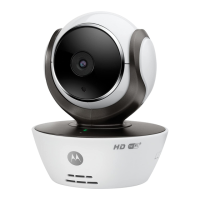
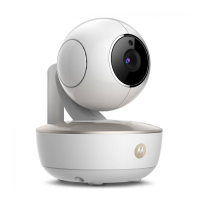
5.5.1 Connecting the Camera Unit to power
• Connect the power adapter to a suitable electrical outlet and insert the plug
into the micro USB socket on the back of the Camera Unit.
• Slide the ON/OFF switch to the ON position. The power indicator LED will
light up in green. (Note: To switch off the device, slide the ON/OFF switch to
OFF.)
• Run the Hubble App on your smart device.
5.5.2 Overview of the Features on Hubble App
Menu to access the camera list. • Tap
Cameras
• Tap
Event Log
to ac cess th ve ideo record
list that is triggered by Motion or Sound
detection.
• Tap
Account
to access u ser
Profile
,
subscription
Plan
,
Notifications
setting,
Remote
Connection Setting
and
About Hubble
Photo/Video •
•
Take a photo or record a video from your
Camera.
Tap t he Video icon
to activate Video
to function. Tap and hold the red button
start recording and release to stop.
• Tap the Camera icon
to switch to Camera
mode. You can capture photos from Camera
view.
NOTE
Photos and videos will be stored in the internal
flash memory of your smart device, and can be
accessed via the Gallery or Media Player
(Android
TM
Device). To play videos, please use
the Hubble App.



 To Next Page
 Loading...