- Ready for connection state: LED is red and flashing slowly
Getting Started - Connecting Devices 9
ENGLISH
3. Getting Started - Connecting Devices
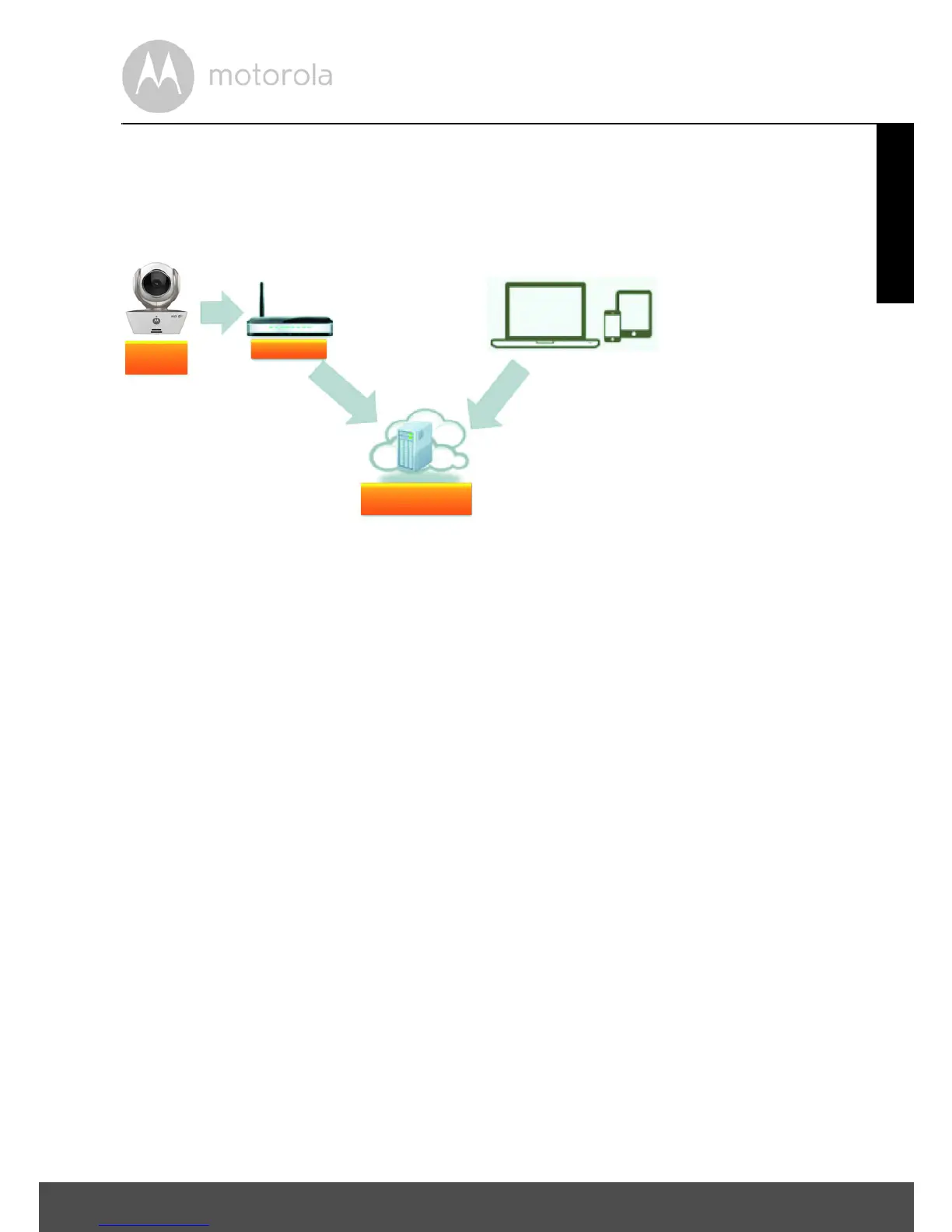
How does it work?
When a user tries to access the Camera, our secure server authenticates the
user’s identity and permits access to the Camera.
3.1 Setup
Connect the Camera to the Power Adapter, then plug it into mains power
socket and make sure the Switch is in the ON position. The Camera must be
within range of the Wi-Fi
®
router with which you want to connect. Make sure the
password of the router is available for entering during the in-app setup process.
Status of LED Indication:
- Pair / Setup state: LED is red and blue and flashing slowly
- Unconnected state: LED is red and flashing slowly
- Connected state: LED is blue and always on
Note:
You can only setup via a compatible smartphone or tablet and not via a PC.


 To Next Page
 Loading...