USB 3.0 Port
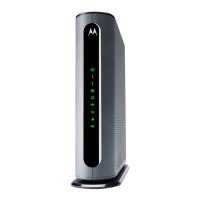
A USB 3.0 port is located on the back of the MG8702. You can choose
to use this port for File Sharing by the devices on your local network.
1 Log in to the Configuration Manager (see Configuration Manager
section above) Navigate to Advanced > Advanced Router > File
Sharing. If it isn’t already checked, click the Enable checkbox for
Windows File Sharing (SAMBA), and click Save.
2 Plug your USB flash drive into the MG8702 USB port.
3 In Windows: Make sure you have Network Discovery and File
Sharing enabled in Network Sharing on your computer.
Open File Explorer (Windows Explorer) and type \\192.168.0.1 in the
address bar. Press Enter. This will open your USB flash drive
directory. Then you will have read/write access to its content.
In MacOS: On the Finder menu, navigate to Go > Connect to
Server. In the address bar type smb://192.168.0.1 and then press the
Enter key.
If prompted by an authentication dialog box, select Guest and click
Connect.
Then click OK. This will open your USB flash drive directory. Then
you will have read/write access to its content.


 To Next Page
 Loading...