Changing wireless settings
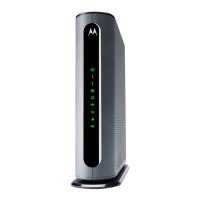
The MG8702 comes set up for wireless-N (2.4 GHz band) and wireless-
AC (5 GHz band) with WPA2 security, with unique wireless network
names (SSIDs) for each band, and a unique password. Both bands use
this password. There’s a good chance that you’ll want to use these
settings. In that case you will need to configure client wireless devices
(laptops, smartphones, etc.) with your MG8702’s wireless network
names and password to connect the devices to the Primary Network on
your MG8702. (You may want to enable a separate Guest Network or
Networks for visitors and others for whom you want to provide Internet
access without also providing access to your computers and other
devices connected to your network.)
You may want to change the wireless settings on the Primary Network.
The most common reason is that you’re replacing a cable
modem/router and you want to use the same wireless network names
and passwords that you’ve had. If you change the wireless settings on
your MG8702 to match your previous settings, you won’t have to
change the settings of wireless devices that worked with your previous
router. Unless there’s a good reason to change your wireless settings,
you should use the unique ones assigned at the factory.
To c hange the wireless settings, first log into the Configuration Manager
as described in chapter 6. In summary, you type 192.168.0.1 in the
address bar of your browser, go to that address, enter the Username
admin and your MG8702’s unique password, then click the Login
button.
This will bring you to the Basic Status and Settings page where you can
change your network name and password.


 To Next Page
 Loading...