Setup your network manually
If you are not using the MotoManage app, you will need to set
up your WiFi Router manually.
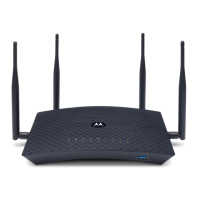
The Motorola logo on the front of the unit should start blinking
green while the unit powers up. If the logo is not blinking green,
check that the On/O button on the back panel is pushed in.
Wait for the Motorola logo to become solid green. This may
take up to 2 minutes. If the Motorola logo does not stop blinking
please see the Troubleshooting section at the end of this guide.
1. Place the unit near your cable modem, DSL modem, fiber
optic modem, or an in-building Ethernet network used for
Internet access.
2. Plug the included Ethernet cable between the WAN/LAN
port on your MH7020 and the LAN port of your modem or
the Ethernet jack of your in-building network.
3. If you are using a modem, switch the power of the modem
o now. (For some modem/routers, this requires you to
remove a backup battery.) After the modem is o for at
least 10 seconds, switch it back on. (If you removed a
backup battery, plug the battery back in first.)
4. Now, connect the supplied power adapter between the
Router’s power jack and an electrical outlet.


 To Next Page
 Loading...