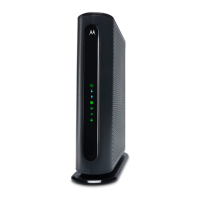
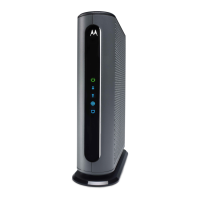
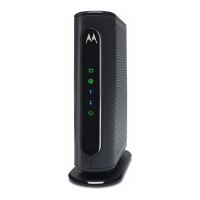
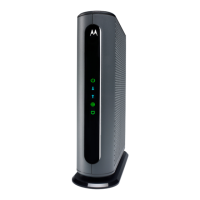
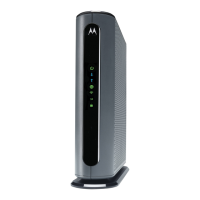
Troubleshooting Tips
What if I can’t make an Internet connection right after installation?
First turn your MG7315 off for at least 8 seconds, then on, to see if that fixes the
problem.
Check the connections you’ve made to your MG7315. Power and coax connections are
required, and up to 4 Ethernet connections are optional. Are those connections good?
Check that the MG7315’s power cube is plugged into a live outlet and that the Ethernet
cable is connected securely to a computer.
Make sure that your coax cable is live. You can check that by using it with a TV.
Check that you provided the correct setup information to your cable service provider.
Contact your cable service provider to make sure they’ve turned on your Internet
service.What if my MG7315 has been working, then stops working?
First turn your MG7315 off for at least 8 seconds, then on, to see if that fixes the
problem.
If the MG7315’s lights don’t come on, check that the modem is getting power from its
power cube and that the MG7315’s power button is on.
Check your MG7315 cables.
Check with your service provider. Sometimes there’s a service outage or some other
service issue.
What if I’m getting Internet service but my speed is disappointing?
Be sure you know what speed you’re paying for.
Check the speed with a computer plugged into the modem. Use one of the tools found
when you search the phrase: broadband speed test.
If you get good speed when a computer’s plugged into the modem, you may have a
wireless problem. In that case, please reread the wireless router section.
Some video streaming services get bottlenecked, especially at busy times like after
dinner. See whether you have the speed problem at less busy times.
Try connecting your MG7315 nearer to where the coaxial cable comes into your home.
This lets you see whether your home’s cabling is a problem.
If you’re using a splitter with your MG7315, try the MG7315 without
the splitter to see if that helps. If it does, you may need to get a better splitter.
What if I’m told that my MG7315 isn’t approved for my MG7315 service?
That’s probably not true. Leading cable service providers have a list of certified cable
modems, and you can check the list for your service provider. ou can also find
information about certifications at www.motorolacable.com/services
What if I am connected wirelessly but my connection seems slow or keeps dropping?
Please re-read the Wireless Router section above.
What if I don’t know my MG7315’s Wireless Network Name/SSID or Security
Key/Password?
The default values are printed on the bottom label of the MG7315. Use these unless you changed
them. If you changed them, try to remember where you put the new values. If you have a device
that connects wirelessly to the MG7315, it may show the Wireless Network Name/SSID and
Password. You can also find this information in the MG7315 Configuration Manager. Information
about using this is in the Configuration Manager section above.
If all else fails, reset the device to factory defaults by holding the Reset button for 10 seconds. You
can then use the default values.
What if I think that wireless devices are interfering with my MG7315 wireless router?
1. Where possible, put the MG7315 as far away as possible from interfering devices such as
Bluetooth transmitters and neighbors’ Wi-Fi routers.
2. To try to pick a less used wireless channel for your MG7315, first, go into your MG7315’s
Configuration Manager.
3. Click the Advanced button at the top of the page, then click the Wireless and Scan/Bridge
menu items at the top of the page.



 To Next Page
 Loading...