INSTALLATION SECTION 2
SECTION 2, INSTALLATION 2-7
If you don’t want to use the Installation Wizard from the CD-ROM,
follow the instructions below. For advanced configurations, refer to
Section 3:Configuration.
Wired Connection to Router
LAN
4
WAN
32
1
ntenna
Reset
Power
ETHERN ET
USB
CABLE
+12VDC
USB CPE MAC ID:ABDCEF012345
S/N : PP PPM MYJ J JSS SSSC A
BBCC CC
HFC MAC ID: ABCDEF012345
CUSTOMER S/N:BCDFGHJKLMNP
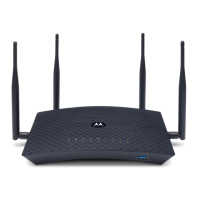
If you are connecting your PC with an Ethernet cable to the router,
your PC must be installed first with an Ethernet adapter.
You need two Ethernet cables for this procedure, one cable to connect the router to
the modem and one cable to connect a PC to the router.
1 If you have been running broadband to a single computer before,
unplug the Ethernet cable (that runs between your modem and
PC) from the back of your PC and plug it into the port labeled
WAN on the back of your router.
2 If you have not been running broadband to a single computer,
take one end of an Ethernet cable and plug it into the WAN port.
The WAN port is the only port that works for your connection from
the modem to the router.
3 Take the other end of the same cable and plug it into your cable
or DSL modem. You have now connected the router to the
modem. It may be necessary to restart your cable or DSL modem
after making this connection.
4 To connect the PC to the router, use a different Ethernet cable
and plug it into your Ethernet port on your PC.
5 Use the other end of the same cable and plug it into one of the
LAN ports on your router. You have now connected your PC to
the router.
6 To connect more devices, repeat steps 4 and 5.
7 To configure the router, refer to Section 3: Configuration.



 To Next Page
 Loading...