SECTION 3 CONFIGURATION
3-40 SECTION 3, CONFIGURATION
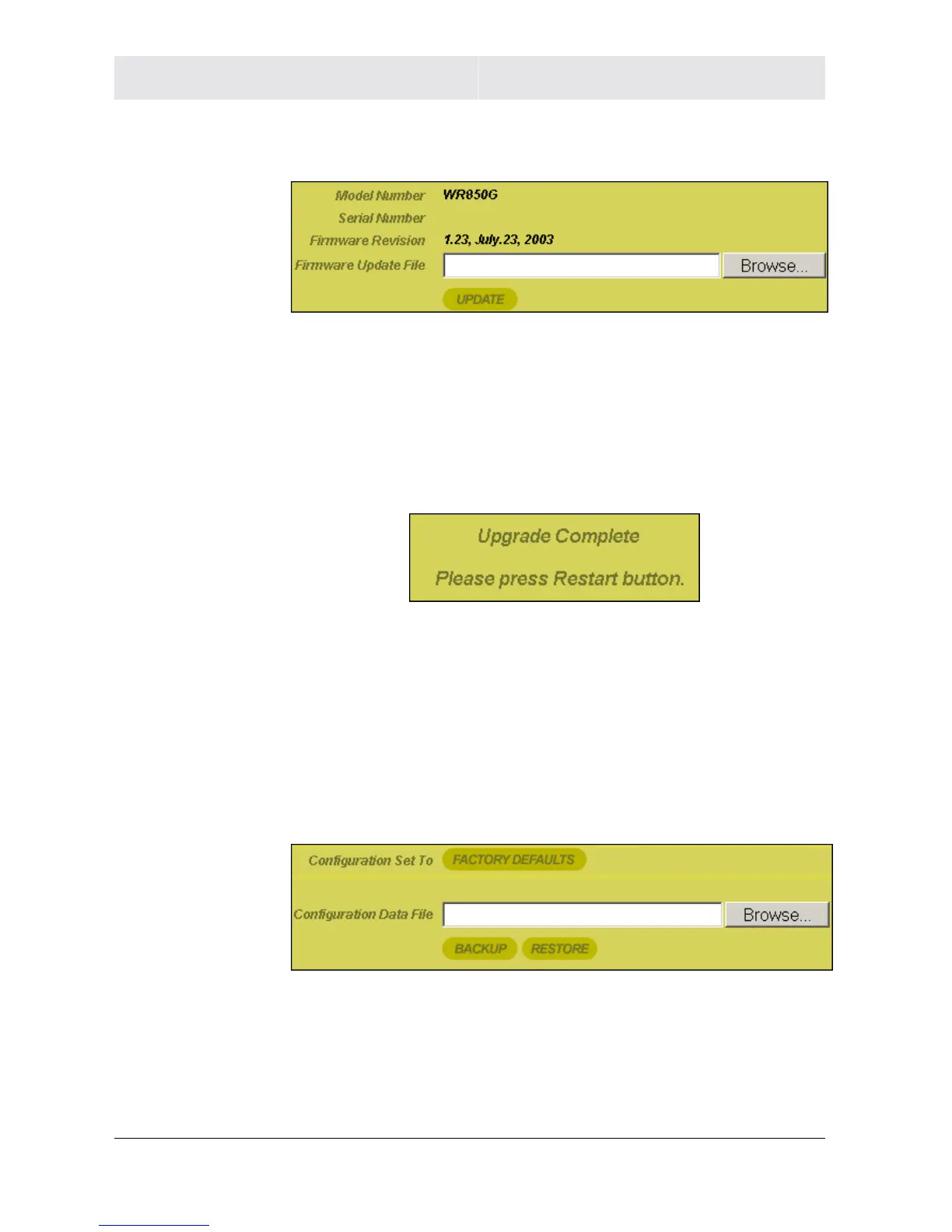
To access the screen, click Admin Control Panel > Firmware
Update.
To update the firmware:
1 Download the latest firmware file to your computer from Motorola.
2 To locate the file you downloaded, type the path to the file or click
Browse and navigate to it.
3 Click Update to update the router with the selected firmware file.
4 The router informs you that you successfully updated the unit.
5 Follow the prompts for restarting.
Control Panel - Configuration Data
This screen enables you to save and restore your settings that you
have currently configured for your router, to a file. You are also able
to reset the router to the factory default settings.
To access the screen, click Admin Control Panel > Configuration
Data.
To reset the router to its original configuration; click Factory
Defaults.



 To Next Page
 Loading...