SECTION 4, TROUBLESHOOTING 4-1
Section 4:Troubleshooting
This section details possible solutions to common problems that
might occur in using the router.
Contact Us
If you are unable to locate a solution here, please access our website
at
www.motorola.com/broadband/networking for the latest information.
You can also reach us 7 days a week, 24 hours a day at
1-877-466-8646.
Hardware Solutions
My computer is experiencing difficulty connecting to the wireless
network.
! Ensure that your router is powered on and that the Wireless LED
is flashing.
! Ensure that your wireless adapter (PCI card, Notebook or
Ethernet adapter) is installed correctly and is active.
! Ensure that your wireless adapter’s radio signal is enabled.
Review your adapter’s documentation for further instructions.
! Ensure that your wireless adapter for your PC and the wireless
router have the same security settings that will allow your
computer to access the wireless network. Also, verify that the
Access Control List (ACL) is not configured to block your PC.
Section 3: Wireless > Security section details how to adjust
security settings.
! Ensure that your wireless adapter is within range of your router or
is not behind obstruction, for example metal structures will
interfere with the signal, as will 2.4 GHz cordless phones, and
microwaves.
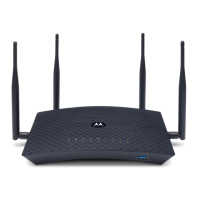
! Ensure that your router’s antenna is connected and that your
PC’s wireless adapter antenna is also connected.



 To Next Page
 Loading...