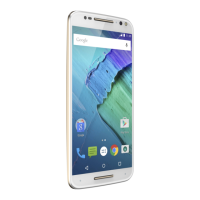
Get Started
Check your battery charge level
Now is a good time to check if your phone needs to be charged. Swipe
down on the home screen to show battery charge level.
Charge phone graphic. Plug in a charger to charge your phone fully.
Charge your phone using a compatible Motorola charger (may be sold
separately). Use of other chargers is not recommended. Insert the
charging cable into the charging port (see First look for port location).
Plug the other end into a power receptacle.
Caution: Chargers that do not comply with applicable national standards
may be unsafe, with risk of death or injury, and may cause slow charging,
product damage, or reduced device performance. To view applicable
standards and to learn more, visit www.motorola.com/device-legal.
Navigate your phone
Explore by touch
Use your fingers to find your way around:
» Tap: Choose an icon or option.
» Touch and hold: See more options.
» Drag: Move items on the home screen.
» Swipe: Scroll through lists or between screens.
» Pinch or double-tap: Zoom in and out on websites, photos, and maps.
» Twist: Twist a map with two fingers to rotate it, and slide two fingers
up to tilt it.
» Split screen: Swipe up from the bottom of the screen and hold, then
tap the icon at the top of the screen and tap
Split screen. Not all
apps will work in split screen. To close the split screen, drag the
dividing line to the bottom of the screen.
» Menus: When you see , , or , you can tap it to open options for
the current screen.
» Close Keyboard: To close a keyboard, tap .
Tip: To quickly open Settings, swipe down twice on the status bar and
tap
.



 To Next Page
 Loading...