Page 3
Field Modem MV1
SETUP INSTRUCTIONS
B
1. Setup Moultrie Mobile Account Online
Go to www.MoultrieMobile.com and select “Register New Account”. Please enter all requested
information to submit your account registration. IMPORTANT: after submitting your registration, you
will receive an email at the email address you provided. You will not be able to log into your account
at www.MoultrieMobile.com until you have conrmed your registration through this email. Please
check your spam, clutter, junk, etc folders for this email. Should you not receive the conrmation email,
please call customer service.
2. Activate Field Modem & Choose a Data Plan
Upon conrming your account registration and logging into MoultrieMobile.com, you will be
prompted to activate a modem. You can begin the modem registration process then, or should
you choose to wait and activate your modem later, go to “Activate Modem” under the “My Account”
drop down at the top of your MoultrieMobile.com account.
To begin the modem activation process, you will need the Serial Number and Modem ID from the
back of your modem. Enter this information into the requested elds and select “Next”. Choose
the monthly data plan that you want for this modem. If you are activating more than 1 modem
select “Add Another Modem”, or to continue with activation for the 1 modem select “Next”.
If you already have a credit card on le you will proceed to the “Summary” screen where you can
conrm the Serial Number and Modem ID as well as the monthly data plan you selected for the
modem. If you want to change the data plan, select “Edit” under the “Actions” section.
Otherwise, select “Purchase” to complete your modem’s activation.
If you do not have a credit card on le, after choosing the data plan and selecting “Next” you
will be directed to the Credit Card section to add your information. Once you click “Save” you
will be redirected back to the “Summary” screen. Once you have conrmed the Serial Number,
Modem ID, and monthly data plan click “Purchase” to complete your modem’s activation.
NOTE: The data and price will be prorated based on when you are activating in the month.
3. Prepare Your Camera
Make sure you have a Moultrie Mobile compatible camera. You can see a full list of compatible
cameras by going to www.MoulrieMobile.com and selecting “CAMERAS” at the top of the website.
Check that your camera has the latest rmware by going to www.MoultrieFeeders.com/rmware-faq
for a list of the newest rmware by camera as well as step-by-step instructions. IMPORTANT: this
rmware step is very important to ensure full operation of your Moultrie Mobile system.
Ensure your camera has fresh alkaline or lithium batteries. We recommend Energizer™ lithium batteries.
NOTE: Do NOT mix old and new batteries and do NOT use rechargeable batteries.
Insert a new SD card that is empty and has been properly formatted. To format the card, go to
“Erase All Images” on your camera and select “YES”. We recommend that you use an 8GB or smaller
Class 10 SD card.
Modem Serial Number
Modem ID
Page 2
Field Modem MV1
MODEM OVERVIEW
A
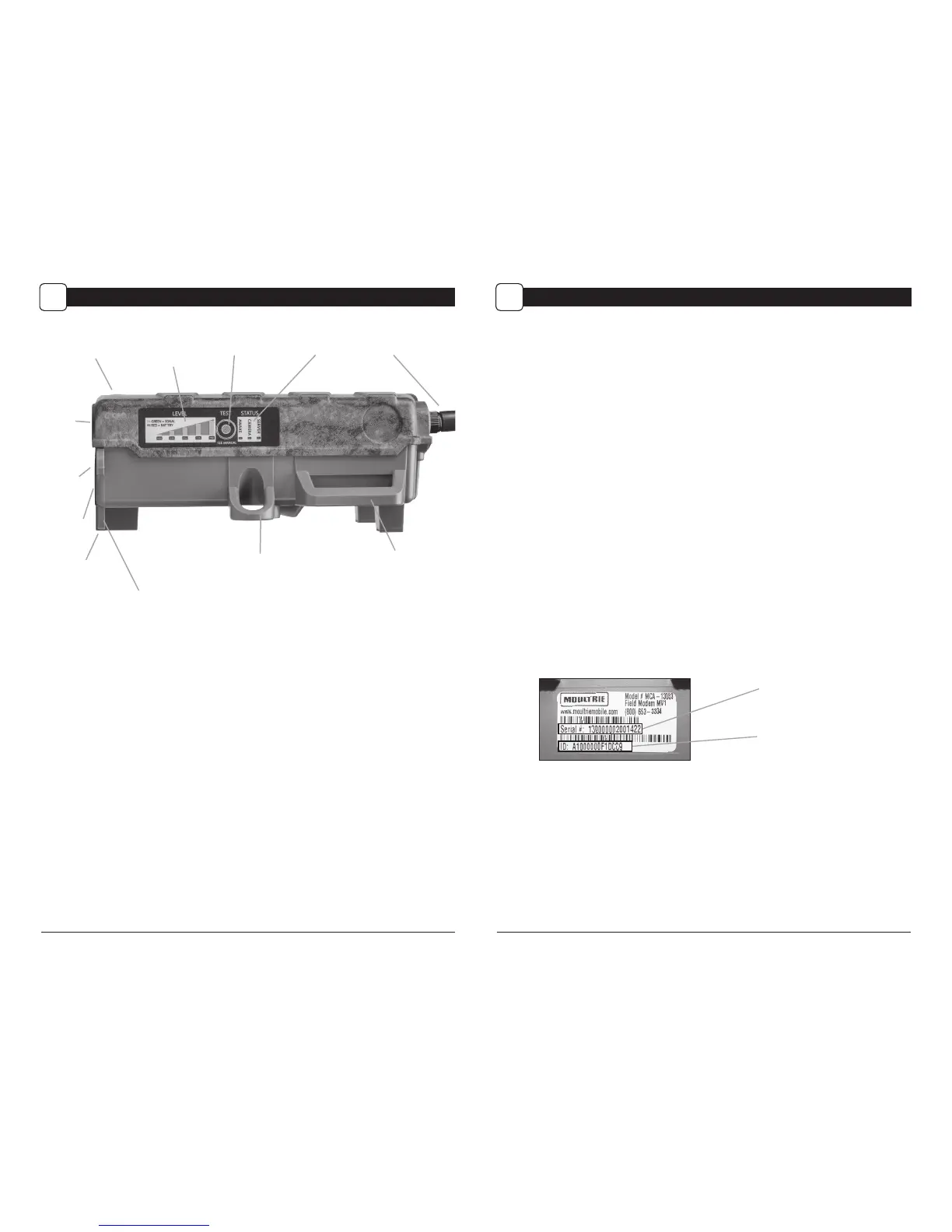
Mounting Features
There are three dierent mounting features available for the Field Modem MV1: Molded Strap Loops,
Python Cable Loop, & 1/4” 20 Mount. A mounting strap is provided for you to attach the modem to
a tree or post through the molded strap loops. For added security, you can attach the modem to a
tree with a Master Lock “Python” cable locking system. Or you can use the 1/4” 20 mount with the
Moultrie EZ Tree Mount or Camera Stake accessories. Visit MoultrieFeeders.com to purchase these
mounting accessories.
Battery Tray
The Field Modem is powered by eight (8) AA alkaline or lithium batteries. Lithium batteries are
recommended for optimum performance. Do not mix alkaline and lithium batteries and never mix
old and new batteries when replacing. Do NOT use rechargeable batteries.
External Power Port
The External Power Port is used to connect an optional Moultrie Power Accessory to extend battery
life. It is strongly recommended that you still install internal batteries when using the external
power port. Doing so will allow continued operation in the event the external power supply
becomes disconnected. Visit www.MoultrieFeeders.com to purchase Moultrie Power Accessories.
USB Cable
A steel braided weather and animal resistant USB cable is provided with your Field Modem MV1.
This cable will connect your modem with Moultrie Mobile compatible cameras.
Visit www.MoultrieMobile.com for a list of compatible cameras.
IMPORTANT: only use the provided USB cable with your Moultrie Mobile system.
Molded Strap LoopPython™ Cable Loop
Eject Button for
Battery Tray
External
Power Port
USB Port
Battery Tray
Antenna Mount
Status LEDs
Battery Level (Red)
and Signal Strength
(Green) Indicators
Test Button
USB Cable Strain Relief Loops
1/4” 20 Mount



 To Next Page
 Loading...