MUCAR CS
Quick Start Manual
EN
MUCAR CS
Manuel de Démarrage Rapide
FR
Connect the MUCAR CS with your vehicle
through the OBDII port
01
Turn on the MUCAR CS
02
Usually, the OBDII port
is located under the
dashboard, above the
pedal on the driver’s
side. The five locations
shown in the picture are
common OBDII port
locations.
After connecting with
the car, the screen will
be shown below.
Functions Description
04
The MUCAR CS main
unit has the following 8
functions:
1. Scan: This function serves to read & clear the DTC of the ECU memory of the tested
system. Read and display real-time data and parameters of the car ECU.
2. OBD: Diagnosis of all problems related to the engine.codes, read data stream, read ECU
information, etc.
3. Maintenance & Service: Supports the most common multiple maintenance and reset
functions.
4. Store: To purchase MUCAR products and softwares.
5. Update: This module allows you to update the diagnostic software & App and set
frequently used software.
6. File: It is used to record and establish the files of the diagnosed vehicles. The files are
created based on the vehicle VIN and check time, including all diagnostic-related data
such as diagnostic reports, data stream records and screenshots.
7. Repair Info: It includes 4 modules, a fault code data base, a table of vehicles able to be
diagnosed, videos, a learning course.
8. Setting: Common system settings can be made here to modify and add information.
This warranty applies only to users and distributors who purchase THINKCAR TECH INC
www.mucarco.com MUCAR CS products through normal procedures. Provide free warranty
within one year. THINKCAR TECH warrants its electronic products for damages caused by
defects in materials or workmanship. Damages to the equipment or components caused by
abusing, unauthorized modification, using for non-designed purposes, operation in a manner
not specified in the instructions, etc.are not covered by this warranty. The compensation for
dashboard damage caused by the defect of this equipment is limited to repair or replace-
ment. THINKCAR TECH does not bear any indirect and incidental losses. THINKCAR TECH
will judge the nature of the equipment damage according to its prescribed inspection
methods. No agents, employees or business representatives of THINKCAR TECH are
authorized to make any confirmation, notice or promise related to THINKCAR TECH
products.
Service Line: 1-833-692-2766
Customer Service Email: service@mucarco.com
Official Website: www.mucarco.com
Products tutorial, videos, FAQ and coverage list are available on
MUCAR official website.
1. Order: Diagnostic software purchase records.
2. Feedback: You can to feedback the diagnostic software/app bugs to us for analysis and
improvements.
3. Repair info: It includes 4 items, a fault code database, a cist of vehicles able to be
diagnosed, videos, a learning course. The maintenance technician can quickly refer to the
explanation of the fault codes, and understand all the vehicles that can be diagnosed
through the table. The videos contain equipment usage, maintenance and diagnosis
guides. The learning course demonstrates how tools are operated. These four functions
help technicians quickly grasp the equipment use and improve diagnostic efficiently.
4. Upgrade: This module allows you to update the diagnostic software & App and set up the
most used software. If you did not download the software in process of product
registration or a pop-up message prompting you that some new software can be updated,
you may use this option to download it or keep it synchronized with the latest version.
5. Screenshots: Turn on this switch to take a screen capture.
6. Screen floating window: Turn on this switch to record the screen operation video.
7. Network: Set the connectable Wi-Fi network.
8. Firmware upgrade: Used to update the firmware.
Download Diagnostics Software
05
You need to download
the corresponding
diagnostics software
when first apply “All
Systems Diagnostic”
and “OBD Functions”.
And no need to
download again when
you use it next time.
Connect Wi-Fi
03
The system will
automatically search all
available Wi-Fi
networks and you can
choose the Wi-Fi
needed. Notice the
“Wi-Fi” must be set
before use.
Settings
06
FAQ
07
Warranty Terms
08
You can do some basic
set up on this page.
Include Wi-Fi, screen
brightness, language,
time zone, and so on.
Here we list some common questions and answers related to this tool.
Q: Why does it have no responses when connected to a car computer?
A: Check whether the connection with the vehicle diagnostic socket is normal, whether the
ignition switch is on, and whether the tool supports the car.
Q: Why does the system stop while reading the data stream?
A: This may be caused by loose diagnostic dongles. Please unplug the dongle and
reconnect it firmly.
Q: Communication error with vehicle ECU?
A: Please confirm:
1. Whether diagnostic dongles are correctly connected.
2. Whether ignition switch is ON.
3. If all checks are normal, please send vehicle year, make, model and VIN number to us
by Feedback function.
Q: Why does the host screen flash when the engine ignition starts?
A: It is normal and caused by electromagnetic interference.
Q: How to upgrade the system software?
A: 1. Start the tool and ensure a stable Internet connection.
2. Go to "Set up" -> “App Update”, click "OTA" and then click “check version” to enter
the system upgrade interface.
9. Language: Select the tool language from the languages displayed on the interface.
10. Time zone: Choose the time zone of the current location, then the system will
automatically configure the time according to the time zone you chose.
3. Complete the process by following the instructions on the screen step by step. It may
take a few minutes. After successfully completing the upgrade, the tool will utomatical-
ly restart and enter the main interface.
Q: How to use the points?
A: Points: Points can be earned by participating in events organized by THINKCAR, or by
recommending others to purchase our products. Every 1 point deducts 1 USD when
purchasing THINKCAR’s products and services. MUCAR shares points with THINKCAR.
Connectez le MUCAR CS à votre véhicule via le
port OBDII
01
Démarrer la MUCAR CS
02
Habituellement, le port
OBDII est sous le
tableau de bord,
au-dessus de la pédale
du côté conducteur. Les
cinq emplacements
indiqués dans l'image
sont des emplacements
de port OBDII courants.
Après la connexion
avec la voiture, les
images s'affichent à
l'écran comme suit.
Functions Description
04
L'ordinateur hôte
MUCAR CS a les 8
fonctions suivantes:
1. Analyse: Cette fonction sert à lire et effacer le DTC de la mémoire ECU du système
testé. Lisez et affichez les données et les paramètres en temps réel de l'ECU de la
voiture.
2. OBD: Diagnostic de tous les problèmes liés aux codes du moteur, lecture du flux de
données, lecture des informations ECU, etc.
3. Entretien & service: prend en charge les fonctions de maintenance les plus normales et
de réinitialisation.
4. Magasin: pour acheter des produits et logiciels MUCAR.
5. Mettre à jour: ce module vous permet de mettre à jour le logiciel et l'application de
diagnostic et de définir les logiciels fréquemment utilisés.
6. Archives: Il est utilisé pour enregistrer et établir le fichier des véhicules diagnostiqués. Le
fichier est créé en fonction du NIV du véhicule et de l'heure de vérification, y compris
toutes les données relatives au diagnostic telles que les rapports de diagnostic, les
enregistrements de flux de données et les captures d'écran.
7. Informations de la réparation: Il comprend 4 éléments:une base de données de codes
d'erreur, un tableau des véhicules pouvant être diagnostiqués, des vidéos, un cours
d'apprentissage.
8. Réglage: Les paramètres système communs peuvent être définis ici pour modifier et
ajouter des informations.
1. Commande: raccords d'achat de logiciels de diagnostic.
2. Feed-back: Il vous permet de nous informer les bogues des logiciels / applications de
diagnostic pour analyser et améliorer.
3. Info de réparation: Il comprend 4 éléments, soit une base de données de codes défauts,
un tableau des véhicules diagnostiquables, des vidéos, un cours d'apprentissage. Le
technicien de maintenance peut rapidement identifier les codes de panne, et tous les
véhicules qui peuvent être diagnostiqués grâce au tableau. Les vidéos contiennent des
guides d'utilisation de l'équipement, des guides de maintenance et de diagnostic. Le
cours d'apprentissage montre l’utilisation des outils. Ces quatre fonctions aident les
techniciens à saisir rapidement l'utilisation de l'équipement et à améliorer l'efficacité du
diagnostic.
4. Mise à jour: Ce module vous permet de renouveler le logiciel de diagnostic et l'applica-
tion et de définir les logiciels fréquemment utilisés.Si vous n'avez pas téléchargé le
logiciel en cours d'enregistrement du produit ou un message contextuel vous invitant à
mettre à jour un nouveau logiciel, vous pouvez utiliser cette option pour le télécharger ou
le maintenir synchronisé avec la dernière version.
5. Captures d'écran: Activer ce commutateur pour effectuer une capture d'écran.
6. Fenêtre flottante de l'écran: Activez cet interrupteur pour enregistrer la vidéo d'opération
de l'écran.
7. Réseau: Régler le réseau WI-FI connectable.
8. Mise à jour du firmware: Utilisé pour mettre à jour le firmware.
Télécharger le logiciel de diagnostic
05
Vous devrez
télécharger le logiciel
de diagnostic adapté
lors de la première
application de «Tous les
diagnostics du
système» et «Fonctions
OBD». Et pas besoin de
télécharger à nouveau
la prochaine fois que
vous l'utiliserez.
Connecter le Wi-Fi
03
Le système recherchera
automatiquement tous
les réseaux Wi-Fi
disponibles et vous
pourrez choisir le Wi-Fi
nécessaire. Remarque:
le Wi-Fi doit être défini.
Réglage
06
Q&R
07
Cette garantie s'applique uniquement aux utilisateurs et aux distributeurs qui achètent des
produits THINKCAR TECH INC www.mucarco.com MUCAR CS selon les procédures
normales. Dans un délai d'un an à compter de la date de livraison, THINKCAR garantit ses
produits électroniques contre les dommages causés par des défauts de matériaux ou de
fabrication. Les dommages à l'équipement ou aux composants dus à un abus, une
modification non autorisée, une utilisation à des fins non conçues, un fonctionnement non
spécifié dans les instructions, etc. ne sont pas couverts par cette garantie. L'indemnisation
des dommages au tableau de bord causés par le défaut de cet équipement est limitée à la
réparation ou au remplacement. THINKCAR TECH ne supporte aucune perte indirecte et
accidentelle. THINKCAR TECH jugera la nature des dommages matériels selon ses
méthodes d'inspection prescrites. Aucun agent, employé ou représentant commercial de
THINKCAR TECH n'est autorisé à faire une confirmation, un avis ou une promesse
concernant les produits THINKCAR TECH.
Ligne de service: 1-833-692-2766
Courriel du service clientèle: service@mucarco.com
Site Web officiel: www.mucarco.com
Le didacticiel sur les produits, les vidéos, la FAQ et la liste de couverture sont disponibles
sur le site Web officiel de MUCAR.
Conditions de garantie
08
Vous pouvez effectuer
une configuration de
base sur cette page.
Incluez le Wi-Fi, la
luminosité de l'écran, la
langue, le fuseau
horaire, etc.
Veuillez trouver les questions et réponses courantes liées à cet outil.
Q: Pourquoi n'a-t-il aucune réponse lorsqu'il est connecté à un ordinateur de voiture?
R: Vérifiez si la connexion avec le diagnostic du véhicule est normale, si le contacteur
d'allumage est ouvert et si l'outil supporte la voiture.
Q: Pourquoi le système s'arrête-t-il lors de la lecture du flux de données?
R: Cela peut être causé par des dongles de diagnostic desserrés. Veuillez débrancher le
dongle et le reconnecter fermement.
Q: Erreur de communication avec l'ECU du véhicule?
R: Veuillez confirmer:
1. Si les dongles de diagnostic sont correctement connectés.
2. Si le contacteur d'allumage est sur ON.
3. Si tous les vérification sont normaux, envoyez-nous l'année, la marque, le modèle et le
numéro VIN du véhicule à l'aide de la fonction de rétroaction.
Q: Pourquoi l'écran hôte clignote-t-il lorsque l'allumage du moteur démarre?
R: C'est normal et causé par des interférences électromagnétiques.
Q: Comment mettre à niveau le logiciel système?
R: 1. Démarrez l'outil et assurez une connexion Internet stable.
2. Allez dans «Configurer» -> «Mise à jour de l'application», cliquez sur «OTA», puis sur
«Vérifier la version» pour accéder à l'interface de mise à niveau du système.
3. Terminez le processus en suivant les instructions à l'écran étape par étape. Cela peut
prendre quelques minutes en fonction de la vitesse Internet. s'il vous plaît soyez
patient. Une fois la mise à niveau terminée, l'outil redémarrera automatiquement et
entrera dans l'interface principale.
9. Langue: Sélectionnez la langue de l'outil parmi les langues affichées sur l'interface.
10. Fuseau horaire: Choisissez le fuseau horaire de la position actuelle, puis le système
configurera automatiquement l'heure en fonction du fuseau horaire que vous avez
choisi.
Q: Comment utiliser les points?
R: Points: Des points peuvent être gagnés en participant à des événements organisés par
THINKCAR, ou en recommandant à d'autres d'acheter nos produits. Chaque 1 point
déduit 1 USD lors de l’achat des produits et services de THINKCAR. MUCAR partage
des points avec THINKCAR.

 Need help?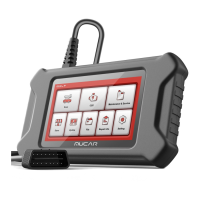

 To Next Page
 General