178
www.multilaser.com.br
5. Click Save to complete the settings.
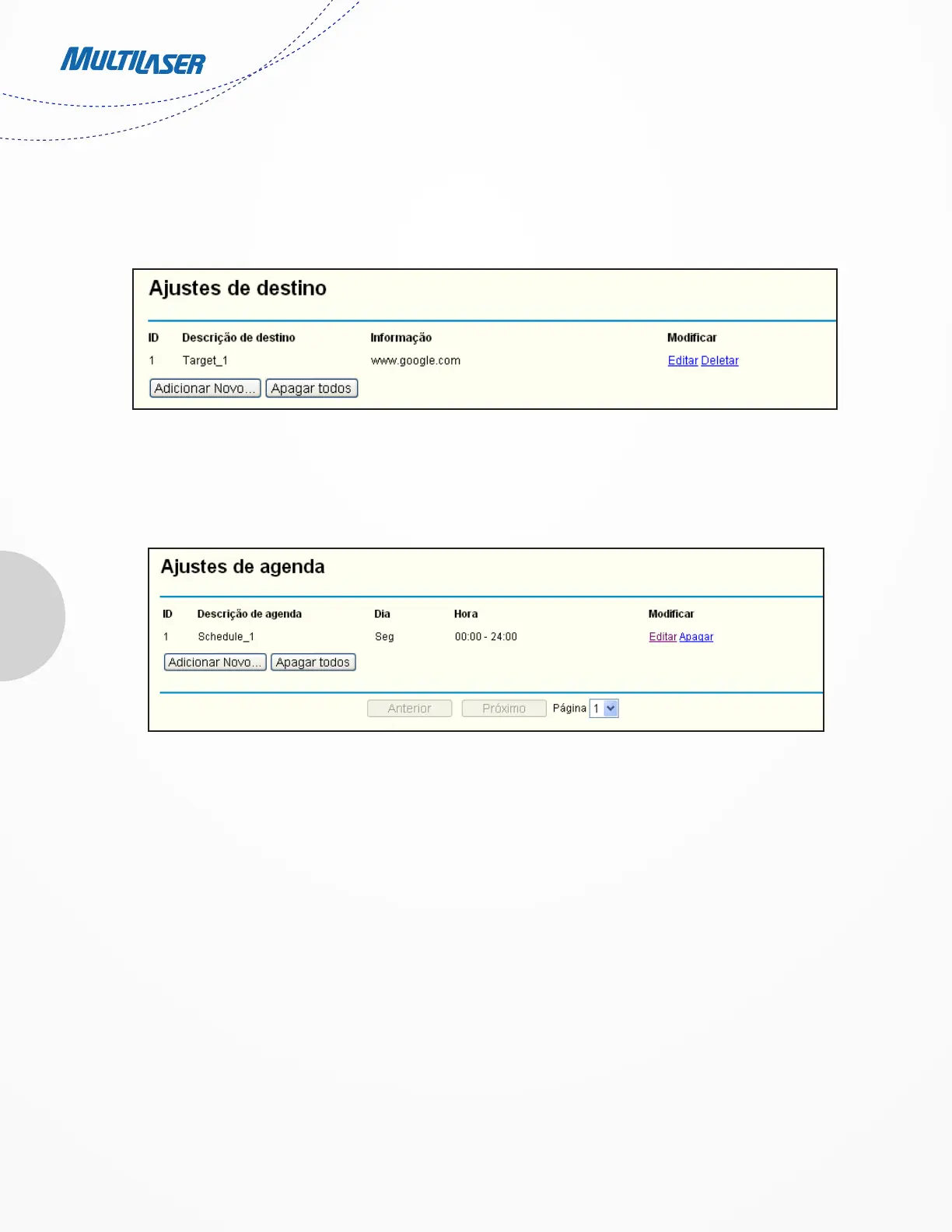
Then you will go back to the Target Settings page and see the following list.
4.11.4. Schedule
Choose menu “Access Control > Schedule”, you can view and set a Schedule list in the next screen as shown in Figure 4 55. The Schedule
list is necessary for the Access Control Rule.
• DSchedule Description - Here displays the description of the schedule and this description is unique.
• Day - Here displays the day(s) in a week.
• Time - Here displays the time period in a day.
• Modify - Here you can edit or delete an existing schedule.
To add a new schedule, follow the steps below.
1. Click Add New... button shown in Figure 4-55 and the next screen will pop-up as shown in Figure 4-56.
2. In Schedule Description field, create a unique description for the schedule (e.g. Schedule_1).
3. In Day field, select the day or days you need.
4. In Time field, you can select all day-24 hours or you may enter the Start Time and Stop Time in the corresponding field.
5. Click Save to complete the settings.
Click the Delete All button to delete all the entries in the table.
Figure 4-55 Schedule Settings


 To Next Page
 Loading...